
How To Extract Files From A 7-Zip Archive In C# & .NET
[C#, .NET, Compression]
In a previous post, How To Create A 7-Zip Archive In C# & .NET, we looked at how to create a 7z archive by automating the 7-Zip command-line tool.
In this post, we will look at the reverse - how to extract files from a 7z archive.
The project structure is as follows:
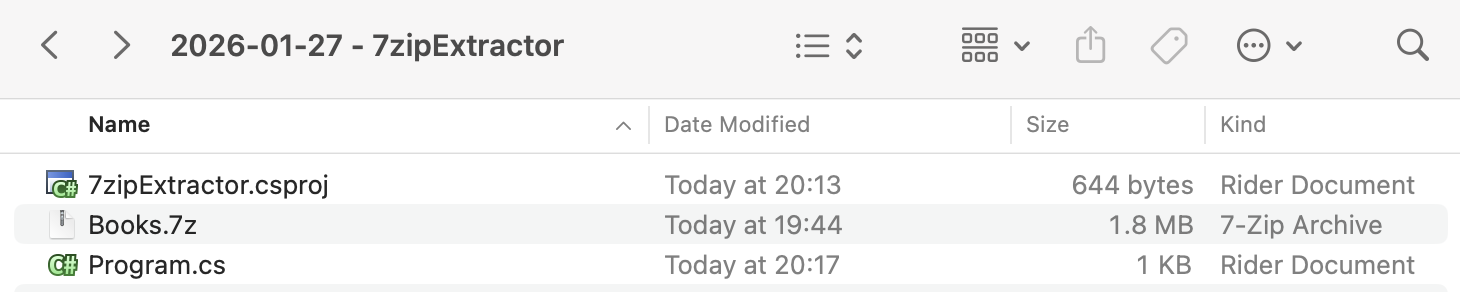
To ensure that the 7z is copied to the output folder, add the following element:
<ItemGroup>
  <None Include="Books.7z">
  	<CopyToOutputDirectory>PreserveNewest</CopyToOutputDirectory>
  </None>
</ItemGroup>
We then add the CliWrap library. This is orders of magnitude easier and more flexible than the native .NET Process class.
dotnet add package CliWrap
The next order of business is that you need to know
- The name of the
7-Zipexecutable - Where it is
In macOS (that I am using), the executable is actually named 7zz.
You can find out where it is using the where command.
where 7zz
For Windows, the executable is named 7z.exe, and is usually in the Program Files folder.
The code itself is as follows:
using System.IO;
using System.Reflection;
using CliWrap;
using CliWrap.Buffered;
using Serilog;

Log.Logger = new LoggerConfiguration()
    .WriteTo.Console().CreateLogger();

// Extract the current folder where the executable is running
var currentFolder = Path.GetDirectoryName(Assembly.GetExecutingAssembly().Location)!;

// Set the folder we want our files extracted to
var outputFolder = Path.Combine(currentFolder, "ExtractedBooks");

// Construct the full path to the zip file
var source7ZipFile = Path.Combine(currentFolder, "Books.7z");

// Path to 7zip executable
const string executablePath = "/opt/homebrew/bin/7zz";

var result = await Cli.Wrap(executablePath) // Set the path to the executable
    .WithArguments(args => args
            .Add("x") //Specify to extract an archive
            .Add(source7ZipFile) // Source zip file
            .Add($"-o{outputFolder}") // The output folder
            .Add("-y") // Say yes to all prompts
    )
    .ExecuteBufferedAsync();

// Check if the process succeeded
if (result.ExitCode != 0)
    Log.Error("7-Zip failed: {Message}", result.StandardError);
else
    Log.Information("Extracted files in {SourceFiles} to {TargetFolder} {Message}", source7ZipFile, outputFolder,
        result.StandardOutput);
If we run this code, we should see the following output:

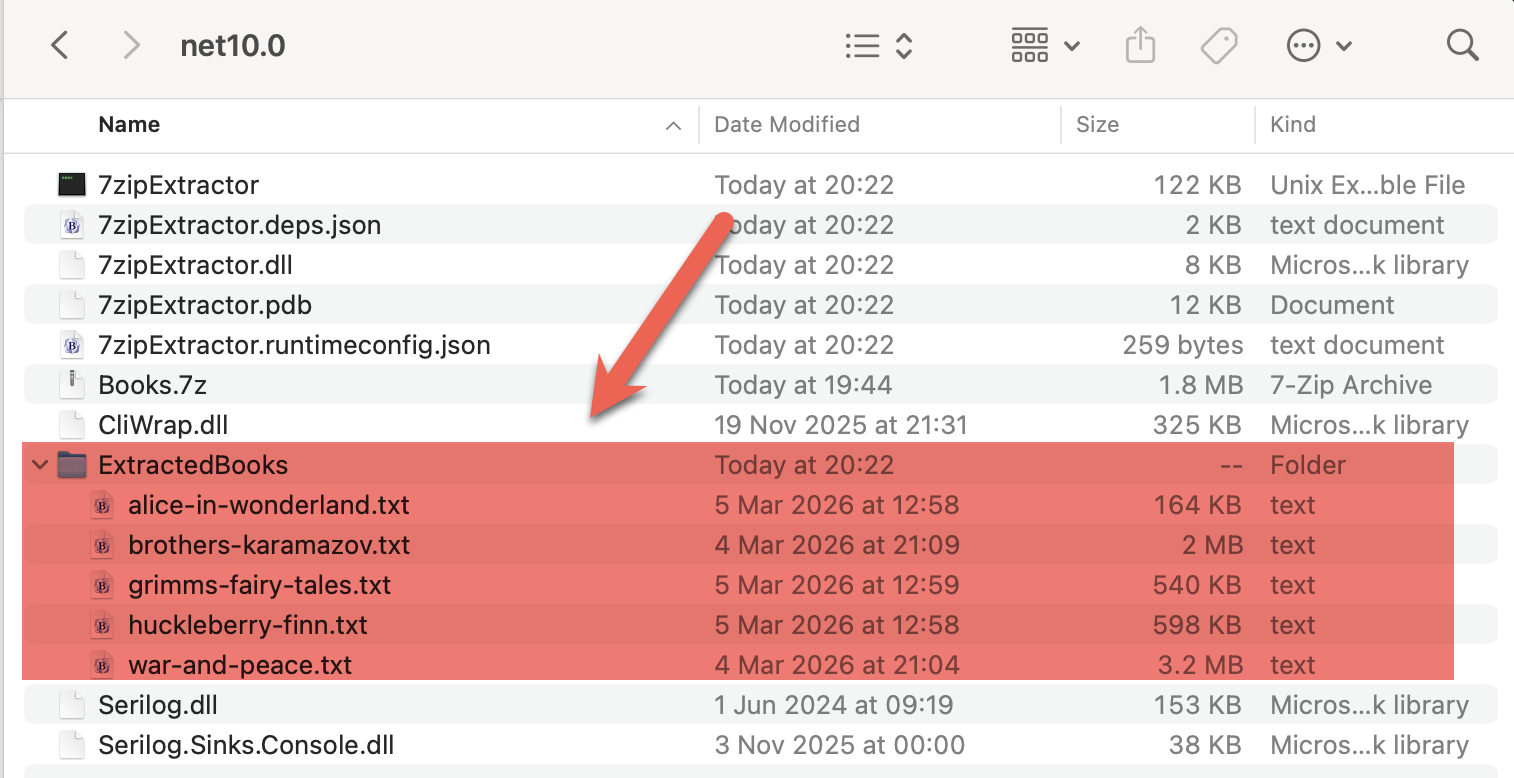
If we look in our output folder, we should see our newly created folder
TLDR
You can extract 7z archives by automating the command-line tool.
The code is in my GitHub.
Happy hacking!