Scheduling Libraries In C# & .NET - Part 1 - Quartz.NET
[Series, C#, .NET, Scheduling, Quartz.Net, StarLibraries]
This is Part 1 of a series on scheduling libraries in C# & .NET.
In this post, we will look at the Quartz.NET library.
Configuration & Setup
To set up the library, use nuget to install the Quartz package
dotnet add package Quartz
Recurring Events
A recurring event is an event you want to fire periodically after a defined threshold.
For example, want to print a message every 10 seconds.
The first set is to create a class that implements the IJob interface. This interface has one method, Execute, that you should implement.
public sealed class NotificationJob : IJob
{
    public Task Execute(IJobExecutionContext context)
    {
        Log.Information("Executing job ...");
        return Task.CompletedTask;
    }
}
The next thing is to schedule the job.
This is done as follows:
using Quartz;
using Quartz.Impl;
using Serilog;

// Configure logging
Log.Logger = new LoggerConfiguration()
    .WriteTo.Console()
    .CreateLogger();

// Create a scheduler
var factory = new StdSchedulerFactory();
var scheduler = await factory.GetScheduler();

// Start the scheduler
await scheduler.Start();

// Define our recurring job
var recurringJob = JobBuilder.Create<NotificationJob>()
    .WithDescription("Print a notification periodically")
    .WithIdentity("Recurring Jon", "Group 1")
    .Build();

//  Define the trigger for the recurring job
var recurringTrigger = TriggerBuilder.Create()
    .WithIdentity("Recurring Trigger", "Group 1")
    // Start immediately
    .StartNow()
    // Schedule every 10 seconds
    .WithSimpleSchedule(x => x.WithIntervalInSeconds(10)
        .RepeatForever())
    .Build();

// Register job with quartz
await scheduler.ScheduleJob(recurringJob, recurringTrigger);

// wait for a minute
await Task.Delay(TimeSpan.FromMinutes(1));

// Shut down the schedular
await scheduler.Shutdown();
The steps are as follows:
- Create a
ScheduleFactory. This is what starts up the scheduling infrastructure. - Fetch a
Schedulerfrom the factory. The returned object implements theISchedulerinterface. - Start the
Scheduler. - Define our
Jobusing theJobBuilderclass and theIJobwe had created earlier, theNotificationJob. - Create a
Trigger, which defines the start and repetition parameters using theTriggerBuilder. Here we configure the job to start immediately and then repeat after the scheduled threshold, which in this case is10seconds. - Schedule the
Jobusing theTrigger. - Shut down the
Schedulerwhen done.
If we run this application, we should see the following:
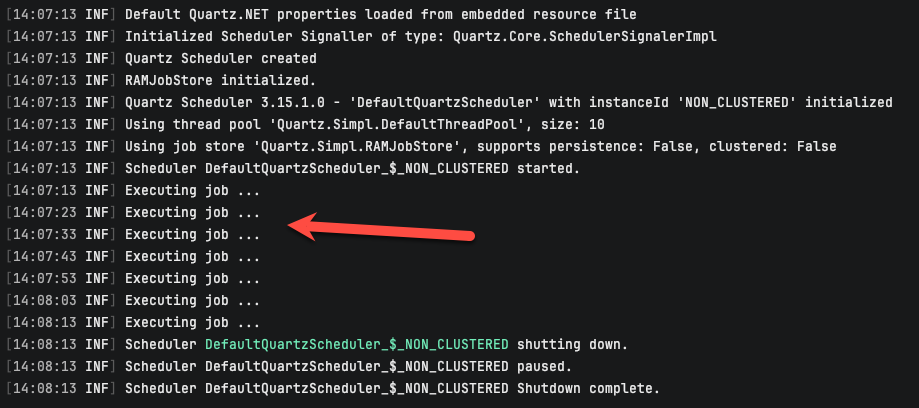
We can see here that the job fired immediately, and then every 10 seconds thereafter.
You can also see that the Quartz engine itself is logging what it is doing.
Timed Events
Another problem you might run into is situations when the recurrence is timed - e.g., repeats at a particular time over a certain period, or fires once at a particular time.
For example, you want a job to run every day at 14:55.
The code would look like this:
sing Quartz;
using Quartz.Impl;
using Serilog;

// Configure logging
Log.Logger = new LoggerConfiguration()
    .WriteTo.Console()
    .CreateLogger();

// Create a scheduler
var factory = new StdSchedulerFactory();
var scheduler = await factory.GetScheduler();

// Start the scheduler
await scheduler.Start();

// Define our timed job
var timedJob = JobBuilder.Create<NotificationJob>()
    .WithDescription("Print a notification periodically")
    .WithIdentity("Recurring Job", "Group 1")
    .Build();

//  Define the trigger for the timed job
var timedTrigger = TriggerBuilder.Create()
    .WithIdentity("Recurring Trigger", "Group 1")
    // every day at 12:00
    .WithCronSchedule("0 55 14 * * ?")
    .Build();

// Register job with quartz
await scheduler.ScheduleJob(timedJob, timedTrigger);

// wait for a minute
await Task.Delay(Timeout.Infinite);

// Shut down the schedular
await scheduler.Shutdown();
The setup is largely the same as before, only that the scheduling is done with the WithCronSchedule method, which takes a cron string as a parameter. There are some nuances to this for Quartz that you can read about here.
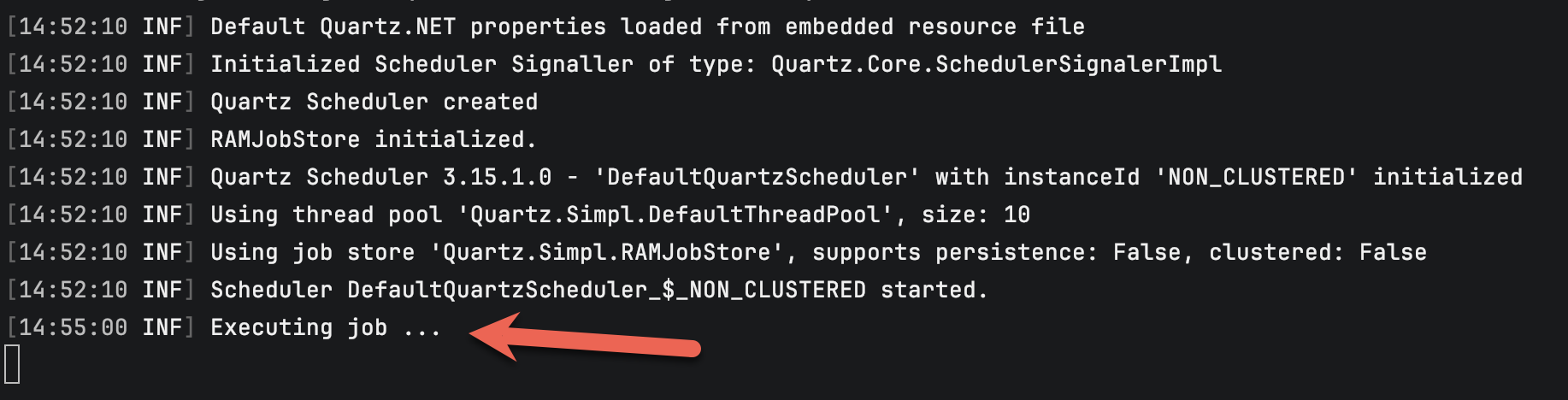
Here we are saying we want the job to run at 14:55 daily.
If we run this code, we should see the following:
Features Of Note
ASP.NET DI Support
ASP.NET is fully supported by Quartz, so you can leverage dependency injection to fully utilize its functionality.
First, install the following packages:
dotnet add package Quartz.Extensions.DependencyInjection
dotnet add package Quartz.Extensions.Hosting
Next, the program startup, where we will configure Quartz.
using Quartz;
using Serilog;

try
{
    // Setup logging
    Log.Logger = new LoggerConfiguration()
        .WriteTo.Console()
        .CreateLogger();

    var builder = WebApplication.CreateBuilder(args);

    // Register Quartz
    builder.Services.AddSerilog();
    builder.Services.AddQuartz();
    builder.Services.AddQuartzHostedService(opt => { opt.WaitForJobsToComplete = true; });

    var app = builder.Build();

    // Fetch a Scheduler Factory from DI
    var schedulerFactory = app.Services.GetRequiredService<ISchedulerFactory>();
    var scheduler = await schedulerFactory.GetScheduler();

    // define the job
    var job = JobBuilder.Create<NotificationJob>()
        .WithIdentity("Notification Job", "Group 1")
        .Build();

    // Trigger the job to run now, and then every 40 seconds
    var trigger = TriggerBuilder.Create()
        .WithIdentity("ASP.NET Job Trigger", "Group 1")
        .StartNow()
        .WithSimpleSchedule(x => x
            .WithIntervalInSeconds(10)
            .RepeatForever())
        .Build();
    await scheduler.ScheduleJob(job, trigger);
    await app.RunAsync();
}
catch (Exception ex)
{
    Log.Fatal(ex, "Application terminated");
}
finally
{
    Log.CloseAndFlush();
}
The key difference here is that, unlike before, we do not create a SchedulerFactory, StdSchedulerFactory, ourselves; we request one from the container.
If we run this app, we should see the following:
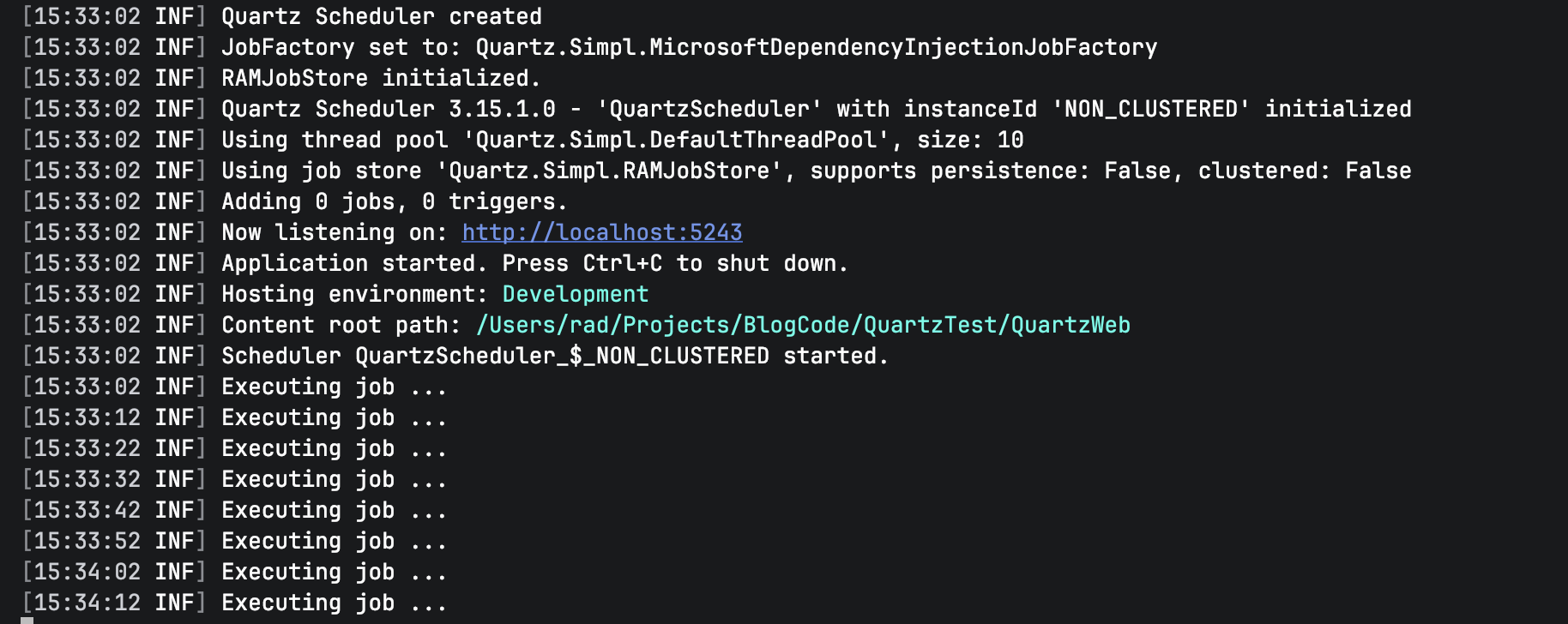
We can see here that it runs every 10 seconds.
We can use this for some of the typical tasks that are required in a web application:
- Populating a cache from external sources
- Clearing temporal caches
- Periodic jobs
HostedService DI Support
For a hosted service, such as a Windows service or Linux system daemon, the code is similar.
First, add the following package:
dotnet add package Quartz.Extensions.Hosting
The code itself will look like this:
using Quartz;
using Serilog;

var builder = Host.CreateApplicationBuilder(args);

try
{
    Log.Logger = new LoggerConfiguration()
        .WriteTo.Console()
        .CreateLogger();

    builder.Services.AddQuartz(x =>
    {
        // Define a jey for the job
        var jobKey = new JobKey("Notification Job");

        // Add the job
        x.AddJob<NotificationJob>(opts => opts.WithIdentity(jobKey));

        // Add the trigger
        x.AddTrigger(opts => opts
            .ForJob(jobKey)
            .WithIdentity("Notification Trigger")
            .StartNow()
            .WithSimpleSchedule(_ => _
                .WithInterval(TimeSpan.FromSeconds(10))
                .RepeatForever()));
    }).AddSerilog();

    builder.Services.AddQuartzHostedService(options => { options.WaitForJobsToComplete = true; });

    var app = builder.Build();

    await app.RunAsync();
}
catch (Exception ex)
{
    Log.Fatal(ex, "Application terminated");
}
finally
{
    Log.CloseAndFlush();
}
The magic is happening here:
builder.Services.AddQuartz(x =>
{
  // Logic here
}
Here, we:
- Define a
jobKeyto refer to ourIJob - Register and add our
IJob - Add a
ITrigger
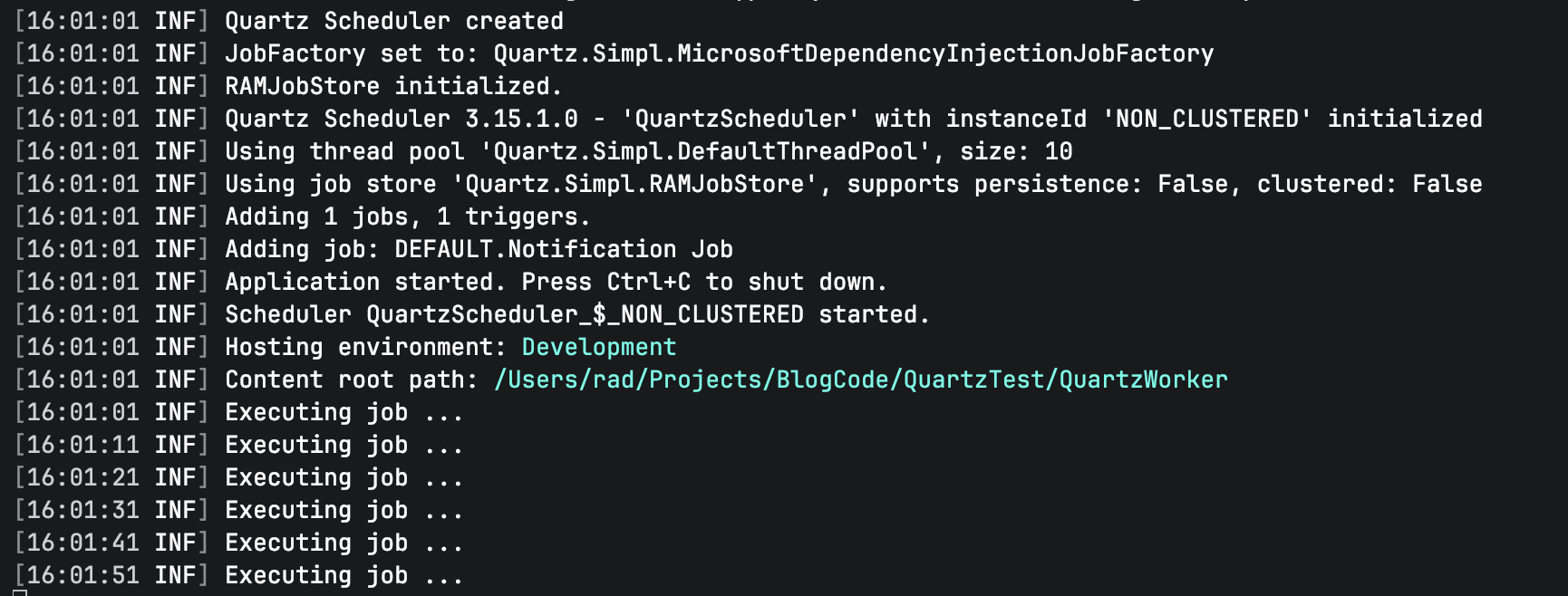
If we run this code, everything should work as expected:
Database Storage Support
By default, Quartz will use an in-memory data store to store state such as scheduled jobs, schedules, etc.
Quartz will log whichever store it is using.
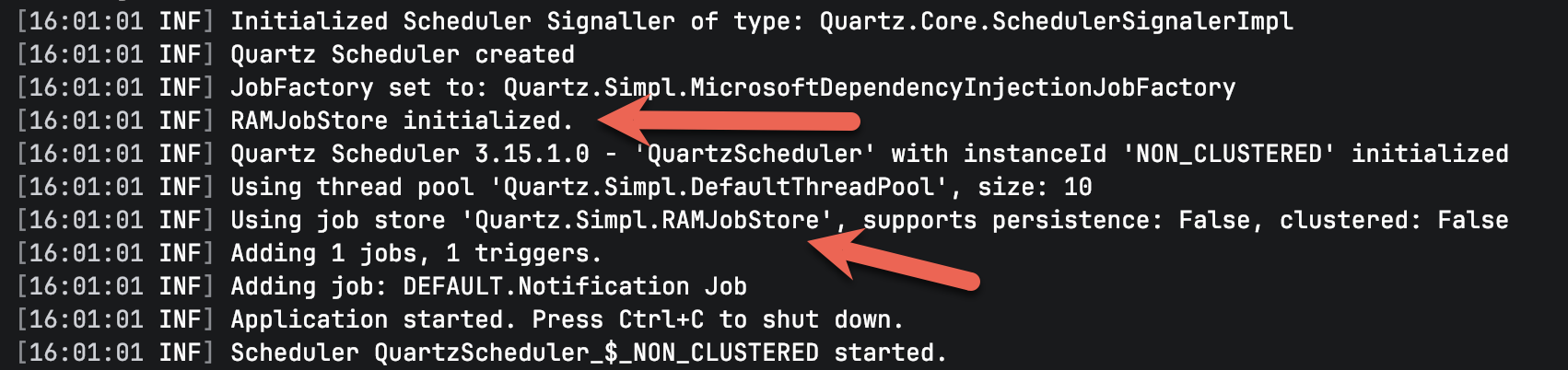
Here, RAMJobStore means that the storage is in memory.
This means that once you stop the application, that data is lost.
To work around this, Quartz allows for the configuration of storage to a database using ADO.NET. This means that, provided you have the drivers installed and (where necessary) configured, you can use the following databases:
To set this up, you need to pick and run the appropriate script from here.
For our example, we will use PostgreSQL.
First, create a database, using whatever method you prefer - terminal, pgAdmin, or a tool like DataGrip.
In my case, I am using DataGrip.
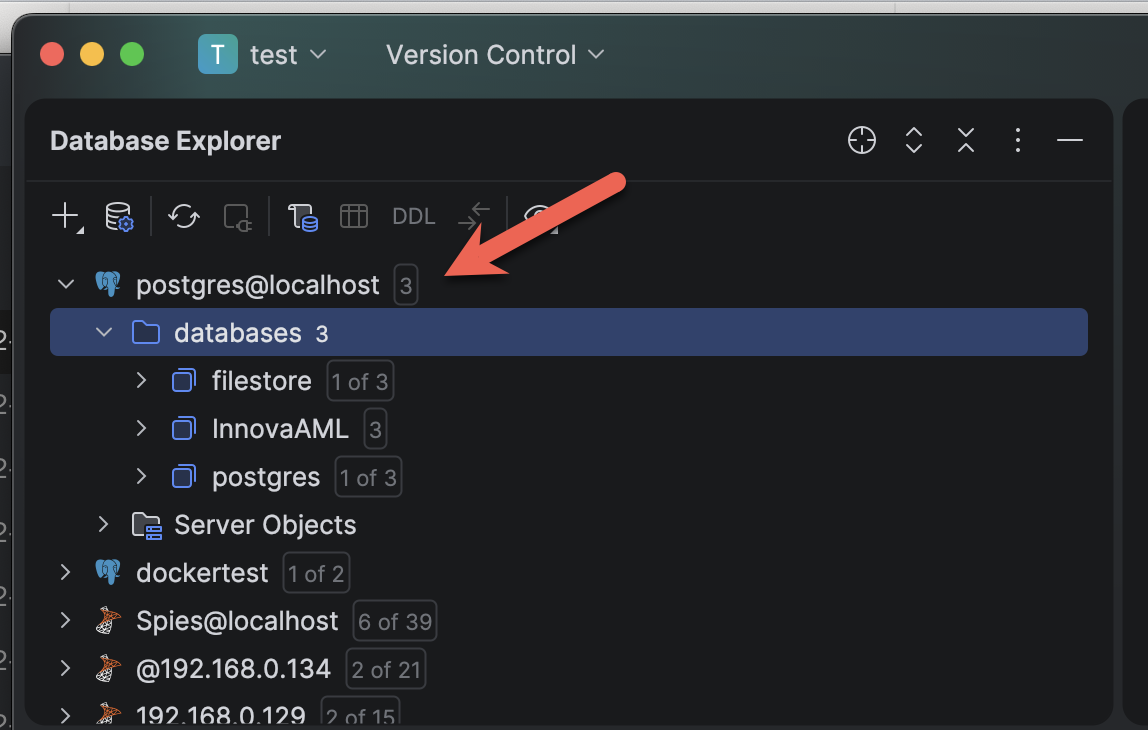
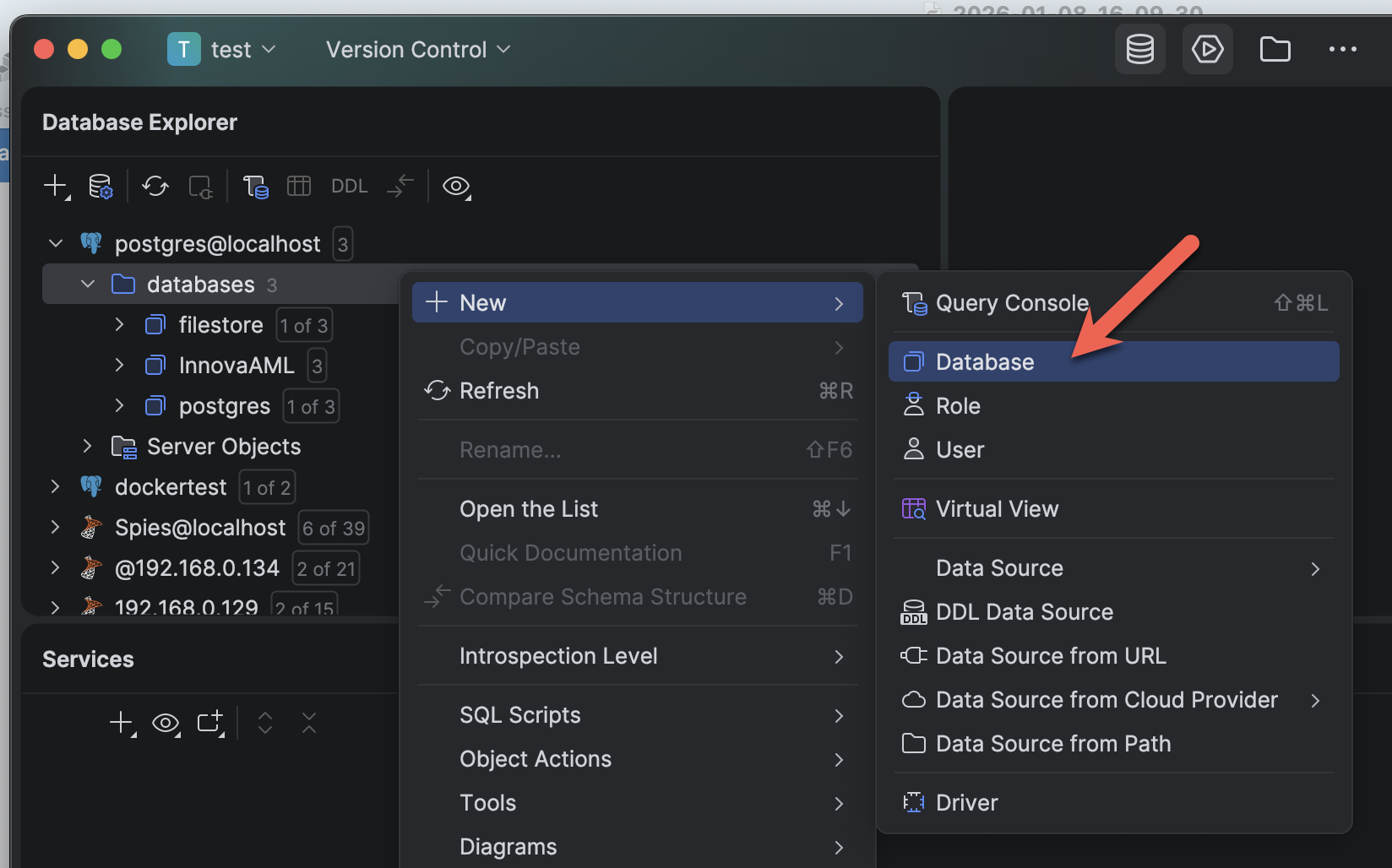
Create the database:
Run the script:
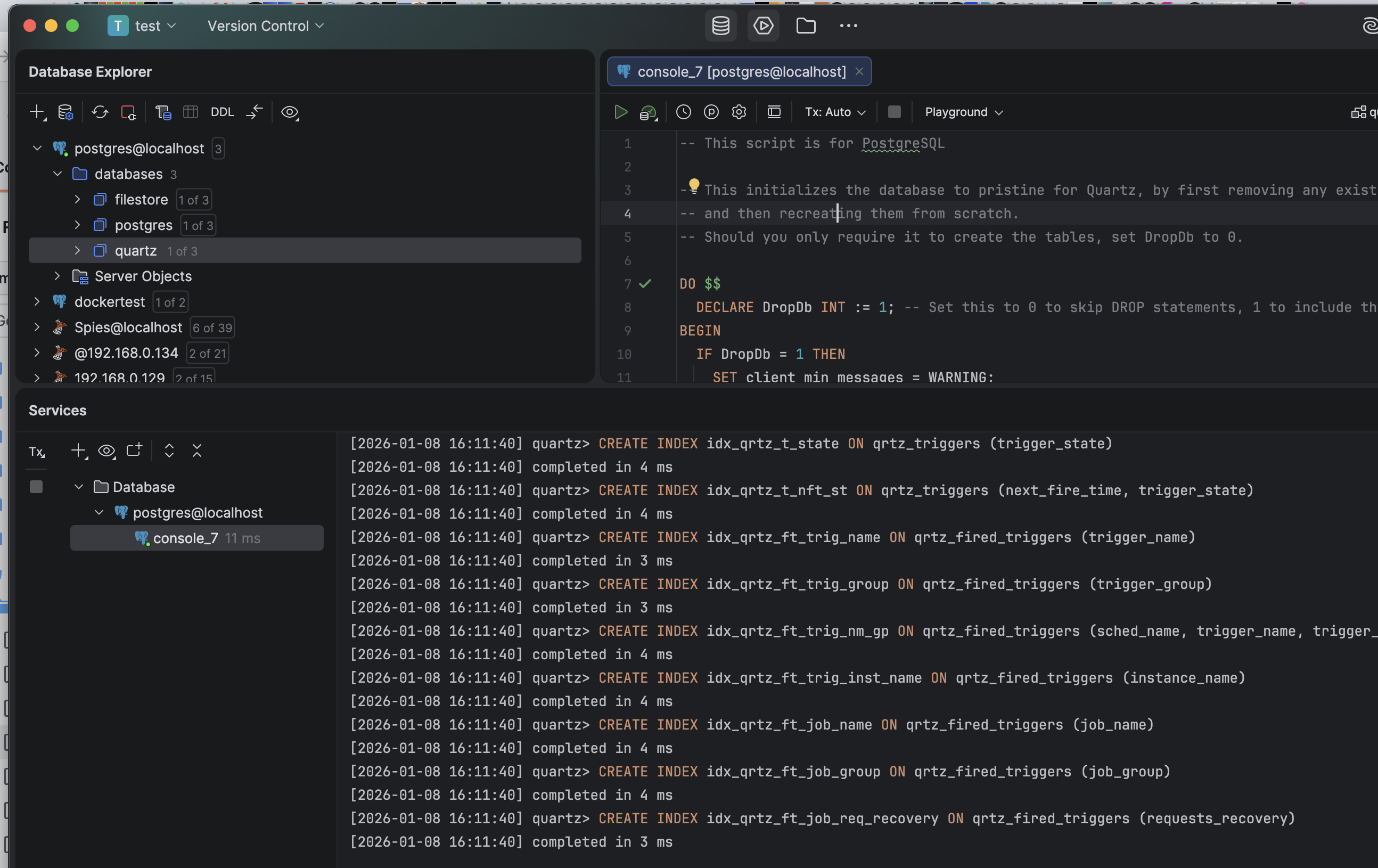
Once complete, you should be able to see the newly created objects.
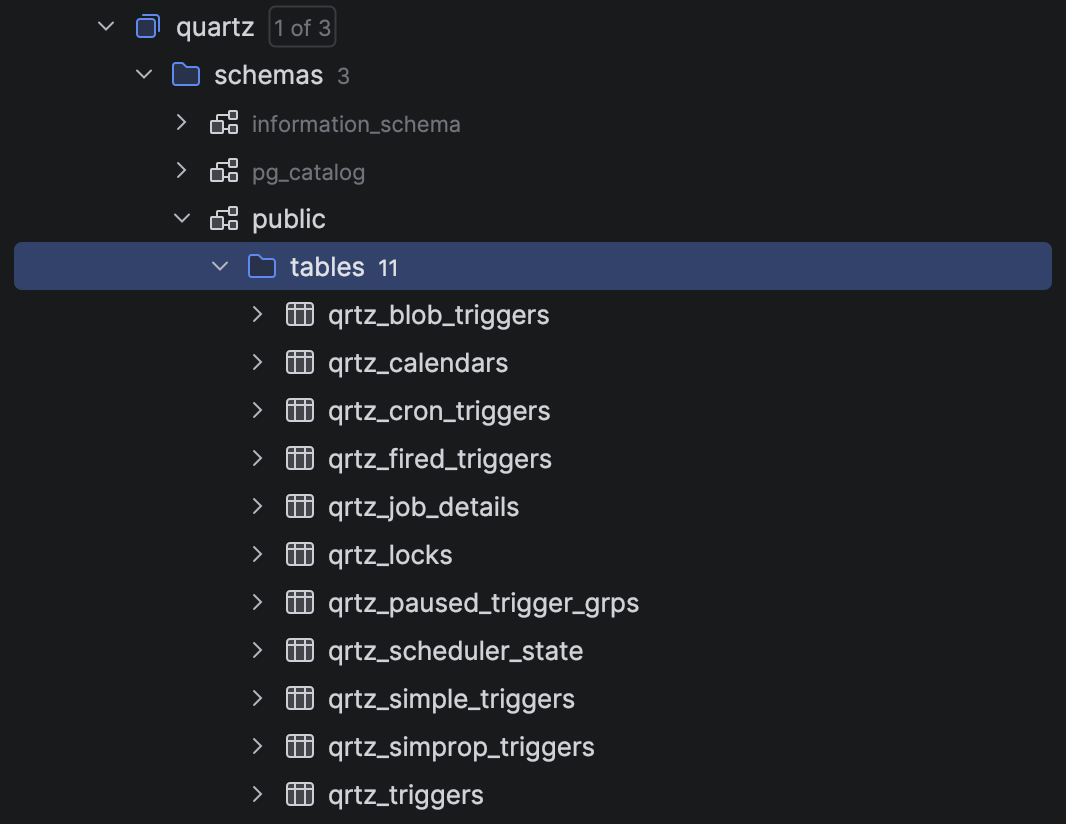
Next, we add the following packages to our project:
dotnet add package Quartz
dotnet add package Npgsql
dotnet add package Quartz.Serialization.Json
This will add the Quartz library and support for the PostgreSQL database.
Finally, we write the code to configure the Scheduler.
using System.Collections.Specialized;
using Quartz;
using Serilog;

// Configure logging
Log.Logger = new LoggerConfiguration()
    .WriteTo.Console()
    .CreateLogger();

// Create an empty nameValue collection to store the properties
var properties = new NameValueCollection();

// Create a scheduler
var scheduler = await SchedulerBuilder.Create(properties)
    .UsePersistentStore(x =>
    {
        x.UseProperties = true;
        x.UseClustering();
        x.UseSystemTextJsonSerializer();
        x.UsePostgres("host=localhost;username=myuser;password=mypassword;database=quartz");
    })
    .BuildScheduler();

// Start the scheduler
await scheduler.Start();

// Define job key
var jobKey = new JobKey("Recurring Job", "Group 1");
// Define trigger key
var triggerKey = new TriggerKey("Recurring Trigger", "Group 1");

// Check if job already exists
if (!await scheduler.CheckExists(jobKey))
{
    // It doesn't. Create one
    var recurringJob = JobBuilder.Create<NotificationJob>()
        .WithDescription("Print a notification periodically")
        .WithIdentity(jobKey)
        .StoreDurably() // Optional but recommended for persistent stores
        .Build();

    await scheduler.AddJob(recurringJob, replace: true); // safe on restarts
}

// Check if the trigger exists
if (!await scheduler.CheckExists(triggerKey))
{
    // It doesn't exist. Create one
    var recurringTrigger = TriggerBuilder.Create()
        // Set the identity to the trigger key
        .WithIdentity(triggerKey)
        // Link trigger to existing job
        .ForJob(jobKey)
        // Start immediately, then wait
        .StartNow()
        // Wait 10 seconds
        .WithSimpleSchedule(x => x
            .WithIntervalInSeconds(10)
            .RepeatForever())
        .Build();

    // Schedule trigger (Quartz will create or replace if needed)
    await scheduler.ScheduleJob(recurringTrigger);
}

// wait for a minute
await Task.Delay(TimeSpan.FromMinutes(1));

// Shut down the schedular
await scheduler.Shutdown();
If we run this code, we should see the following
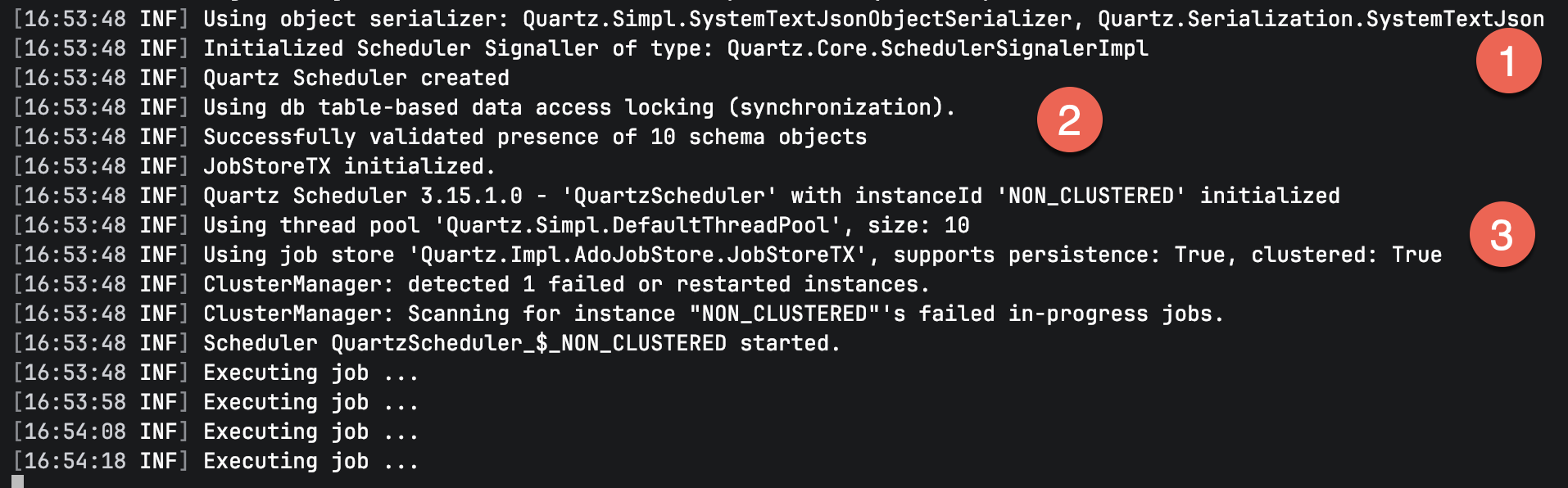
Here we can observe the following:
- We have set the serialization to use the System.Text.Json serializer
- Our storage is now a database.
- The storage is correctly registered.
TLDR
In this post, we have looked at how to use the Quartz library for recurrent and timed schedules, as well as how to use it in a ASP.NET project, a worker service, and also how to use a database to store state.
The code is in my GitHub.
Happy hacking!