Scheduling Libraries In C# & .NET - Part 2 - Hangfire
[Series, C#, .NET, Scheduling, Quartz.Net, StarLibraries]
This is Part 2 of a series on scheduling libraries in C# & .NET.
In this post, we will look at the Hangfire library.
Configuration & Setup
To demonstrate this, we shall start with a simple console application.
dotnet new console -o HangfireTestRecurring
To set up the library, use nuget to install the Hangfire package
dotnet add package Hangfire.Core
Hangfire typically requires a database because it stores its data and metadata in persistent storage.
The following databases are supported:
Depending on the datastore you want to use, you must install the corresponding package.
| Database | Package |
|---|---|
| PostgreSQL | Hangfire.PostgreSQL |
| Redis | Hangfire.Redis.StackExchange |
| MongoDB | Hangfire.Mongo |
| MySQL | Hangfire.MySQLStorage |
| SQLite | Hangfire.SQLite |
| Oracle | Hangfire.Oracle |
| LiteDB | Hangfire.LiteDB |
For this example, we will be using PostgreSQL.
You will therefore need to install the corresponding package:
dotnet add package Hangfire.PostgreSQL
You will also need to install the PostgreSQL Drivers:
dotnet add package Npgsql
You will also need to explicitly create the database yourself; one will not be created for you.
create database hangfire
Finally, we configure Hangfire.
using Hangfire;
using Hangfire.PostgreSql;
using Serilog;

// Configure logging
Log.Logger = new LoggerConfiguration()
    .WriteTo.Console()
    .CreateLogger();

GlobalConfiguration.Configuration
    .UseSimpleAssemblyNameTypeSerializer()
    .UseRecommendedSerializerSettings()
    .UsePostgreSqlStorage(x => { x.UseNpgsqlConnection("host=localhost;Database=hangfire;username=myuser;password=mypassword"); });
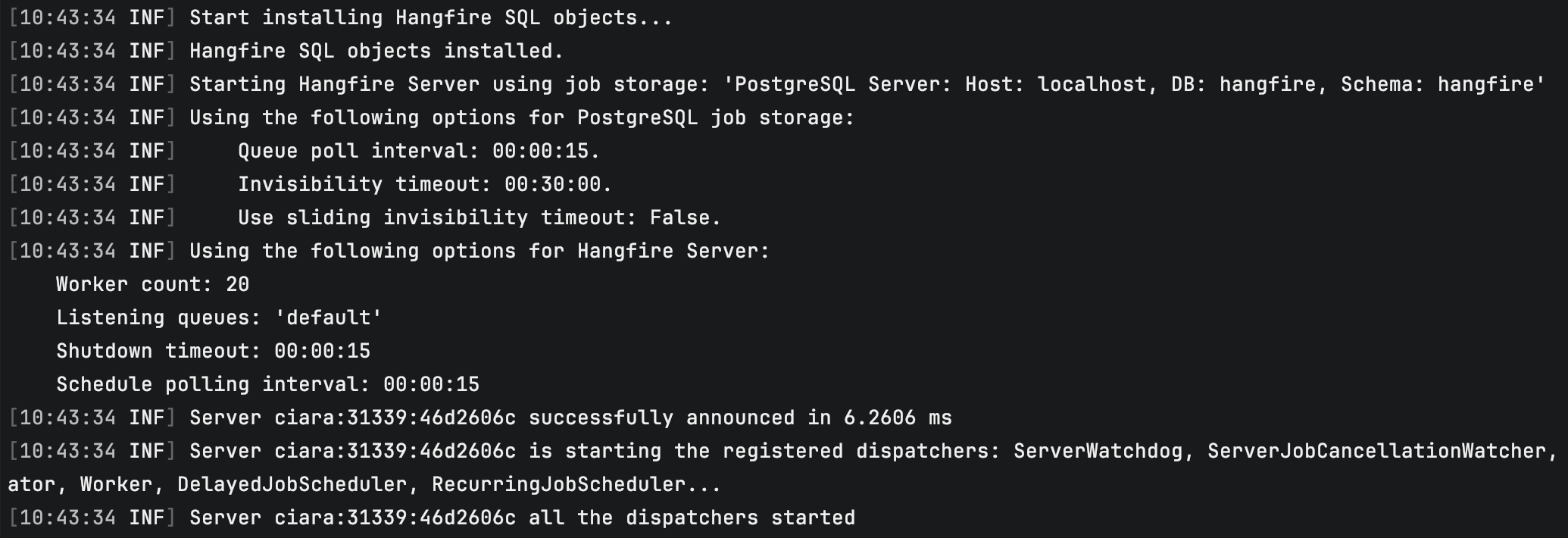
If we run this application, we should see the following:
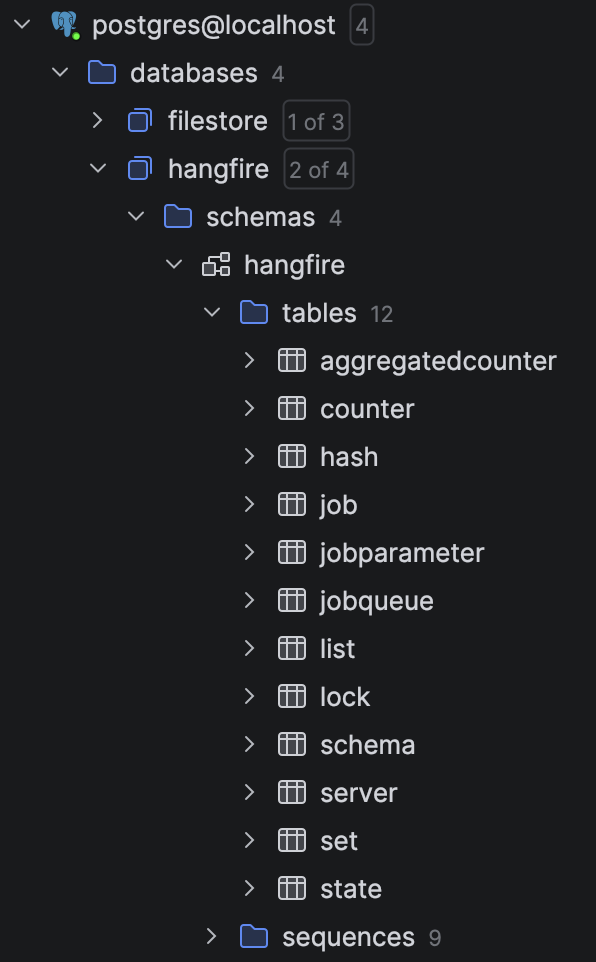
You will also see in your previously empty database some new objects.
Recurring Events
A recurring event is an event you want to fire periodically after a defined threshold.
For example, want to print a message every 10 seconds.
The first step is to define the architecture that encapsulates our logic. For this example, we encapsulate our logic in a NotificationJob, with the logic executing in the Execute method. For this class, we will inject the generic ILogger<NotificationJob>
using Microsoft.Extensions.Logging;

public sealed class NotificationJob
{
    private readonly ILogger _logger;

    public NotificationJob(ILogger<NotificationJob> logger)
    {
        _logger = logger;
    }

    public Task Execute()
    {
        _logger.LogInformation("Executing job ...");
        return Task.CompletedTask;
    }
}
The next thing is to schedule the job.
This is done as follows:
using Hangfire;
using Hangfire.PostgreSql;
using Serilog;

// Configure logging
Log.Logger = new LoggerConfiguration()
    .WriteTo.Console()
    .CreateLogger();

// Configure hangfire
GlobalConfiguration.Configuration
    .UseSimpleAssemblyNameTypeSerializer()
    .UseRecommendedSerializerSettings()
    .UsePostgreSqlStorage(x =>
    {
        x.UseNpgsqlConnection("host=localhost;Database=hangfire;username=myuser;password=mypassword");
    });

// Start the server
using (var server = new BackgroundJobServer())
{
    // Create / update a recurring job
    RecurringJob.AddOrUpdate<NotificationJob>(
        "Every Minute Job",
        job => job.Execute(),
        Cron.Minutely()
    );

    // Artificial wait
    await Task.Delay(TimeSpan.FromMinutes(5));

    // Shutdown server
    await server.WaitForShutdownAsync(CancellationToken.None);
}
The steps are as follows:
- Create a
BackgroundJobServerthat is responsible for connecting to theHangfireinfrastructure - Using the generic
RecurringJobObject, register theNotificationJobclass, defining a name, the method to execute, and the interval. In this case, we are saying run every minute using the helperCron.Minutely().
If we run this application, we should see the following:
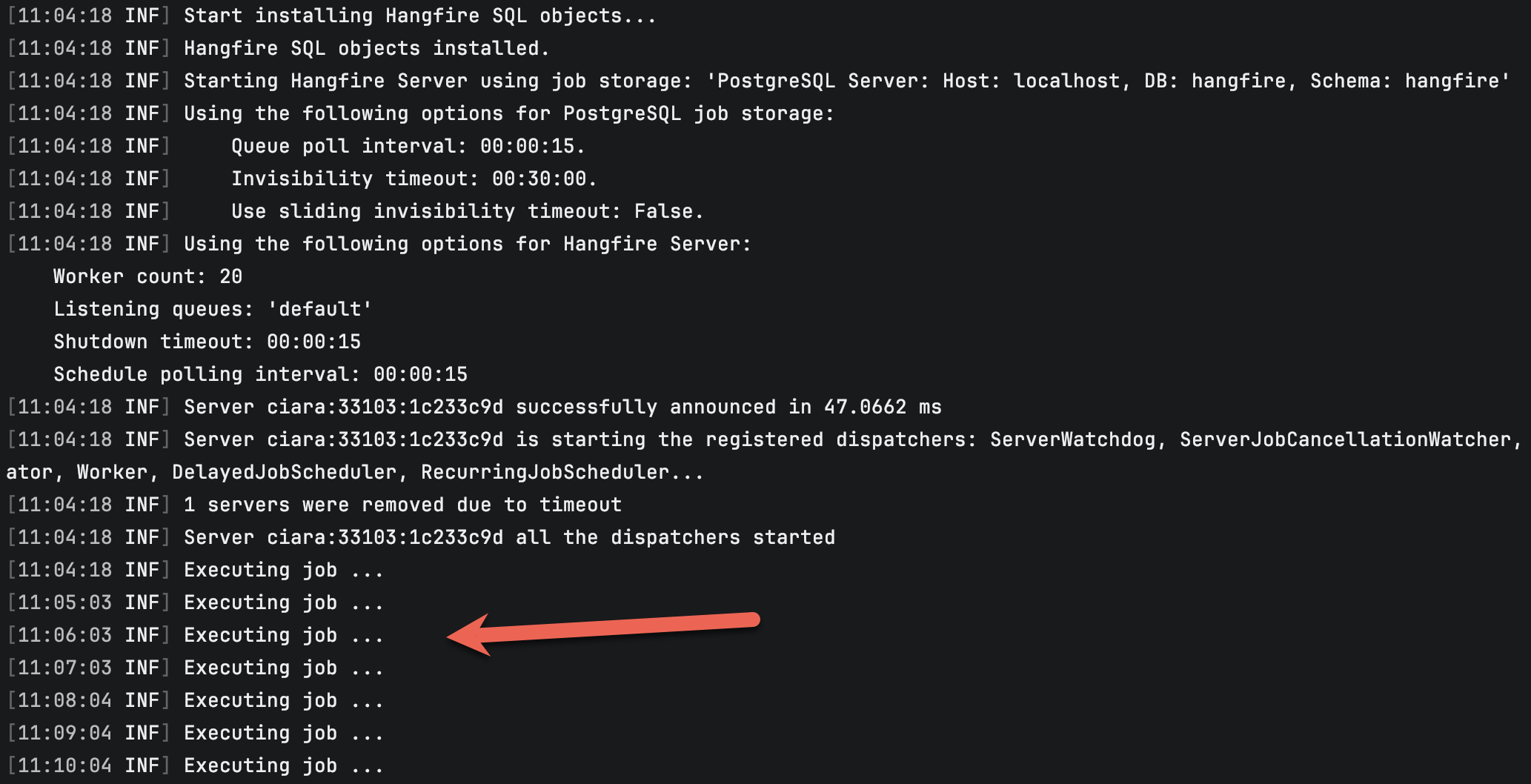
A couple of things to note:
Hangfireis not designed for high-frequency intervals - the smallest supported interval is one minute.- Even that interval is not high fidelity - there may be a drift of a second or two.
Timed Events
Another problem you might run into is situations when the recurrence is timed - e.g., repeats at a particular time over a certain period, or fires once at a particular time.
For example, you want a job to run every day at 11:30.
The code would look like this:
using Hangfire;
using Hangfire.PostgreSql;
using Serilog;

// Configure logging
Log.Logger = new LoggerConfiguration()
    .WriteTo.Console()
    .CreateLogger();

// Configure hangfire
GlobalConfiguration.Configuration
    .UseSimpleAssemblyNameTypeSerializer()
    .UseRecommendedSerializerSettings()
    .UsePostgreSqlStorage(x =>
    {
        x.UseNpgsqlConnection("host=localhost;Database=hangfire;username=myuser;password=mypassword");
    });

// Start the server
using (var server = new BackgroundJobServer())
{
    // Create / update a recurring job
    RecurringJob.AddOrUpdate<NotificationJob>(
        "Daily Timed At 11:50",
        job => job.Execute(),
        // The time in UTC
        Cron.Daily(8, 50)
    );

    Log.Information("Registered ...");

    // Artificial wait
    await Task.Delay(-1);

    Log.Information("Shutting Down");

    // Shutdown server
    await server.WaitForShutdownAsync(CancellationToken.None);
}
The code is largely similar to the recurrent example, with this difference:
RecurringJob.AddOrUpdate<NotificationJob>(
      "Daily Timed At 11:50",
      job => job.Execute(),
      // The time in UTC
      Cron.Daily(8, 50)
  );
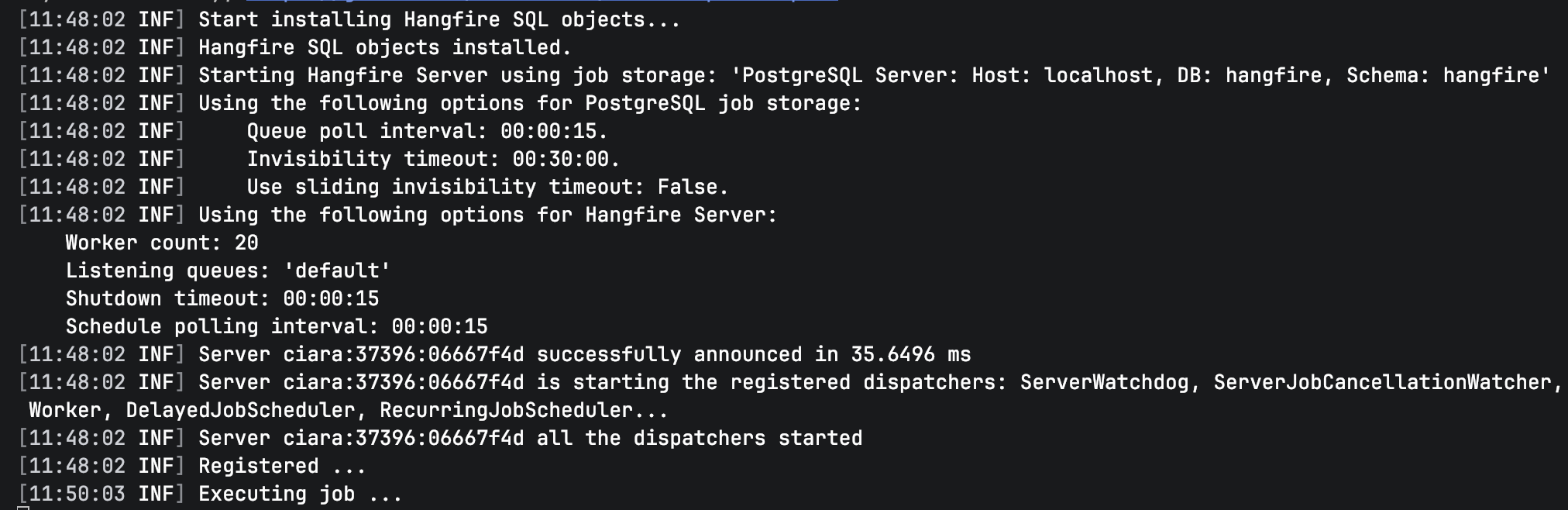
Again, we are using a helper method, Cron.Daily() to which we pass the time we want the event to fire - hour 11, minute 30. It is important to note that this time is in UTC.
If we run this code, we should see the following:
Features Of Note
ASP.NET DI Support
ASP.NET is fully supported by Hangfire, so you can leverage dependency injection to fully utilize its functionality.
First, install the following packages:
dotnet add package Hangfire.AspNetCore
Next, the program startup, where we will configure Hangfire.
using Hangfire;
using Hangfire.PostgreSql;
using Serilog;

Log.Logger = new LoggerConfiguration()
    .WriteTo.Console()
    .CreateLogger();

var builder = WebApplication.CreateBuilder(args);
builder.Services.AddSerilog();

// Add services
builder.Services.AddHangfire(config =>
{
    config.UseSimpleAssemblyNameTypeSerializer();
    config.UseRecommendedSerializerSettings();
    config.UsePostgreSqlStorage(options =>
    {
        options.UseNpgsqlConnection(builder.Configuration.GetConnectionString("Hangfire"));
    });
});

// Add server
builder.Services.AddHangfireServer();

var app = builder.Build();
app.UseHangfireDashboard();

// Now register the jobs

// Get a recurring job manager form DI container
var recurringJobManager = app.Services.GetRequiredService<IRecurringJobManager>();

// Register our job that fires every minute
recurringJobManager.AddOrUpdate<NotificationJob>(
    "ASP.NET Every Minute Job",
    job => job.Execute(),
    Cron.Minutely()
);

app.MapGet("/", () => "OK");

await app.RunAsync();
Of interest here is that we fetch the RecurringJob manager, which implements the IRecurringJobManager interface from the DI container in this line:
var recurringJobManager = app.Services.GetRequiredService<IRecurringJobManager>();
We then use that to add or update our job.
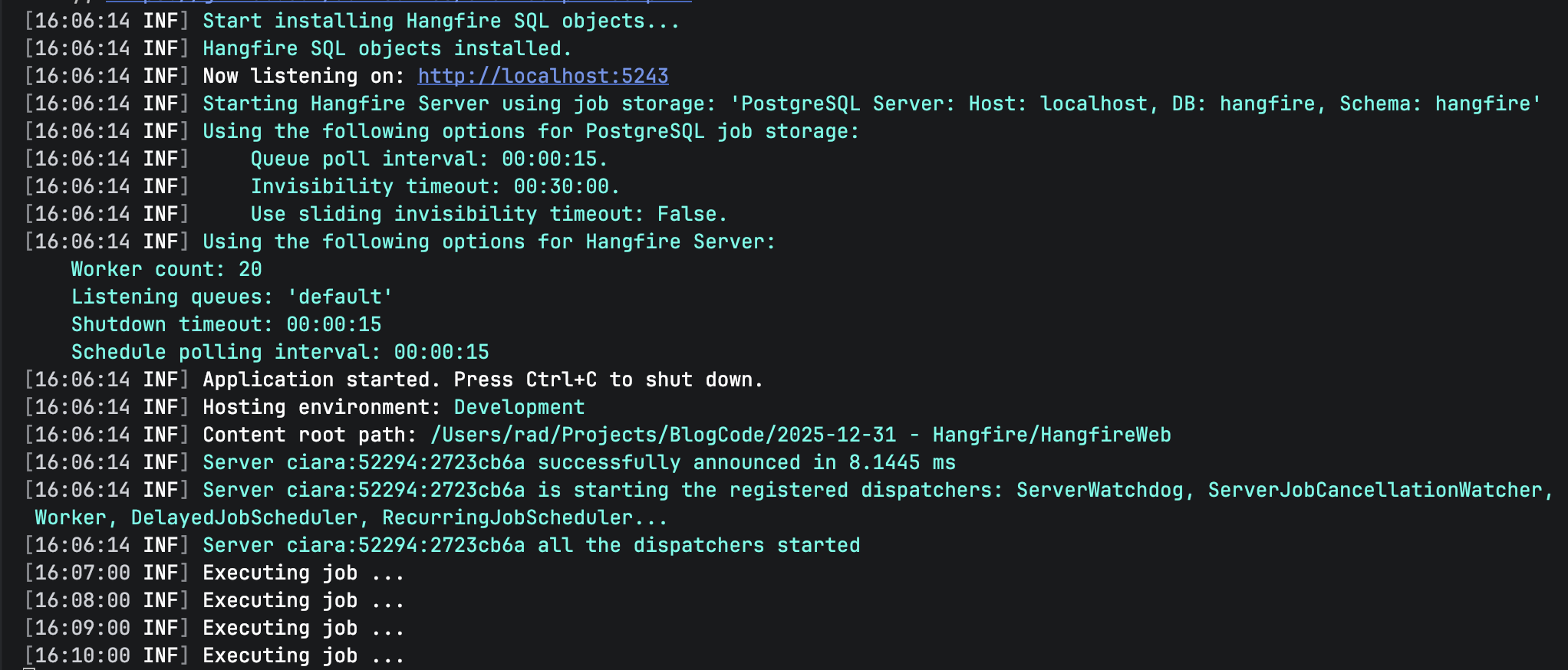
We can see here that it runs every minute.
We can use this for some of the typical tasks that are required in a web application:
- Populating a cache from external sources
- Clearing temporal caches
- Periodic jobs
HostedService DI Support
For a hosted service, such as a Windows service or Linux system daemon, the code is similar.
First, add the following package:
dotnet add package Hangfire.AspNetCore
The code itself will look like this:
using Hangfire;
using Hangfire.PostgreSql;
using Logic;
using Serilog;


try
{
    Log.Logger = new LoggerConfiguration()
        .WriteTo.Console()
        .CreateLogger();

    var builder = Host.CreateApplicationBuilder(args);

    // Add services
    builder.Services.AddSerilog();
    // Add job to the DI container!
    builder.Services.AddTransient<NotificationJob>();
    builder.Services.AddHangfire(config =>
    {
        config.UseSimpleAssemblyNameTypeSerializer();
        config.UseRecommendedSerializerSettings();
        config.UsePostgreSqlStorage(options =>
        {
            options.UseNpgsqlConnection(builder.Configuration.GetConnectionString("Hangfire"));
        });
    });


    // Add server
    builder.Services.AddHangfireServer();

    var app = builder.Build();

    // Now register the jobs

    // Get a recurring job manager form DI container
    var recurringJobManager = app.Services.GetRequiredService<IRecurringJobManager>();

    // Register our job that fires every minute
    recurringJobManager.AddOrUpdate<NotificationJob>(
        "Worker Service Every Minute Job",
        job => job.Execute(),
        Cron.Minutely()
    );

    await app.RunAsync();
}
catch (Exception ex)
{
    Log.Fatal(ex, "Application terminated");
}
finally
{
    Log.CloseAndFlush();
}
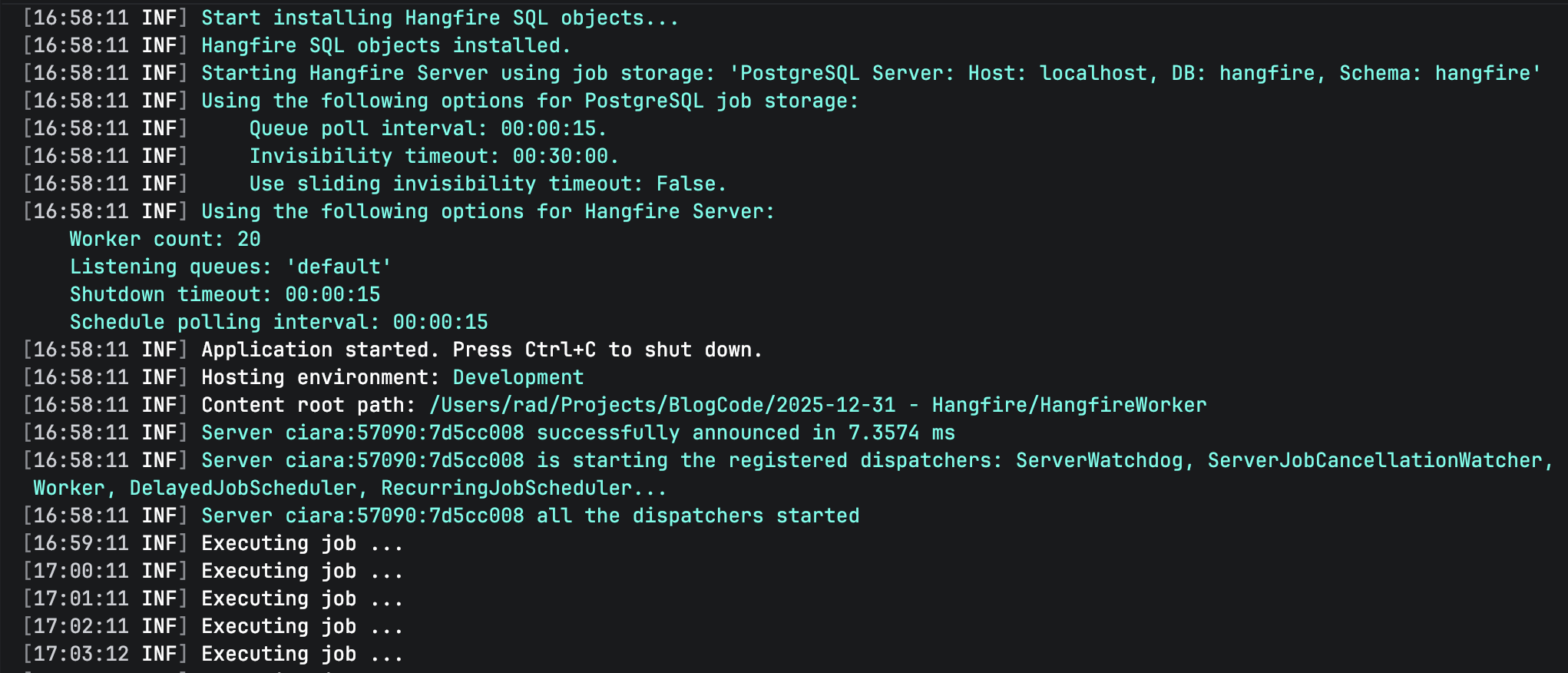
If we run this app, everything should work as expected:
Hangfire Dashboard Support
Hangfire exposes a dashboard you can use to view a lot of information about the Hangfire services running.
For web applications, you register the dashboard as follows:
var app = builder.Build();

// Configure the hangfire dashboard
app.UseHangfireDashboard();
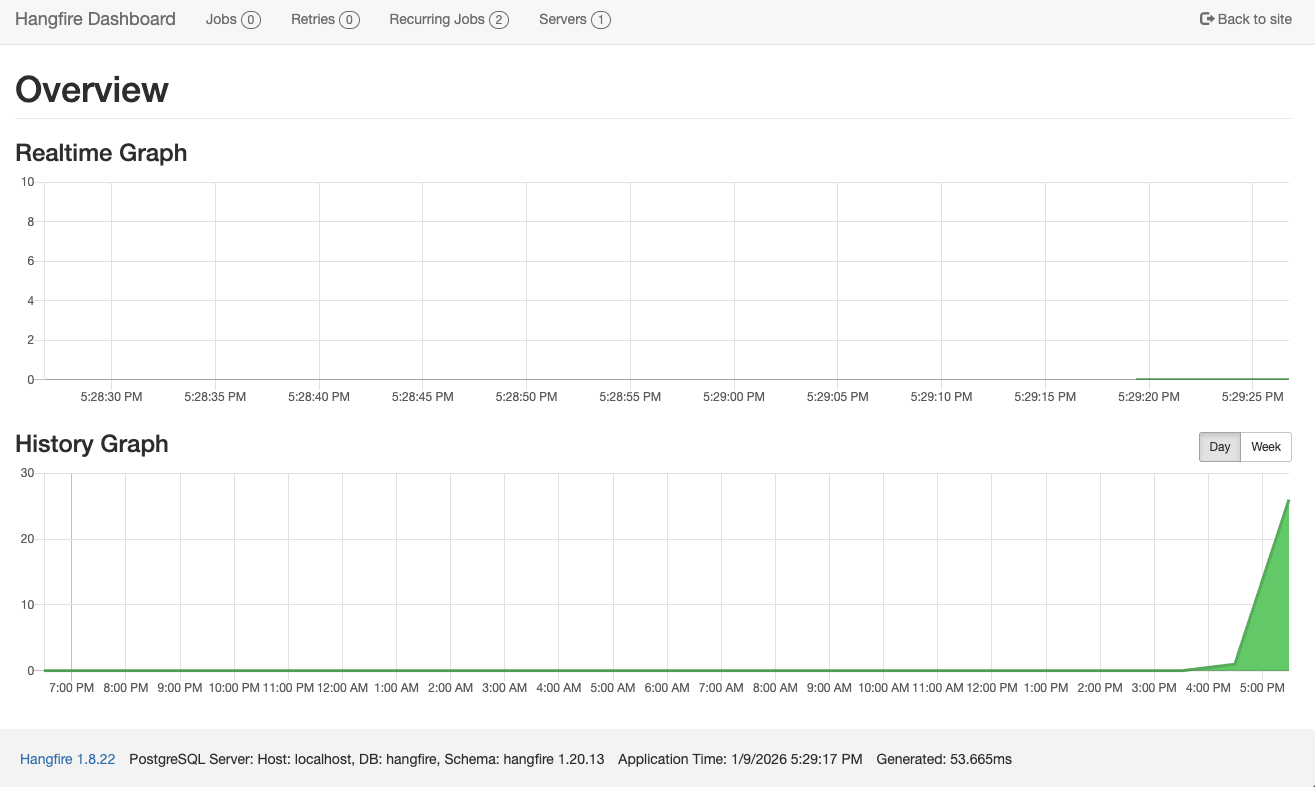
You can then navigate to the dashboard by visiting the /hangfire route:
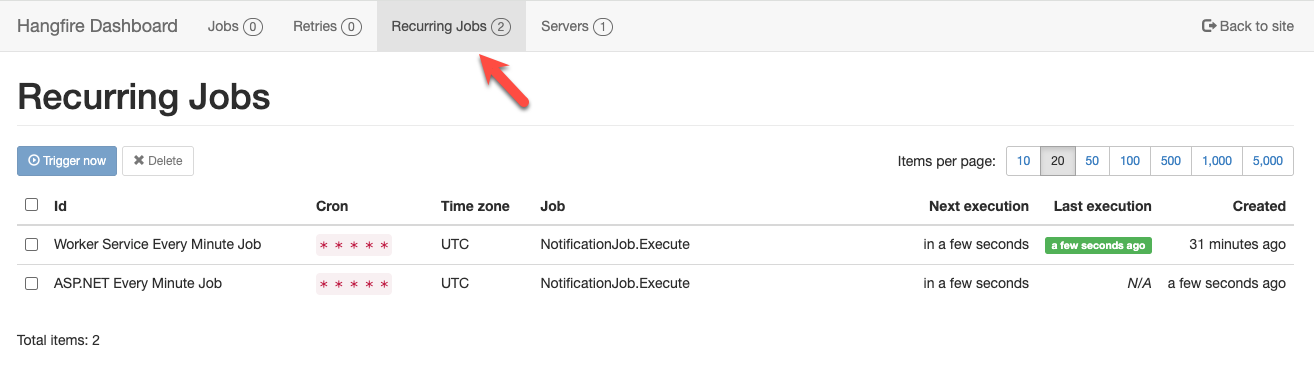
You can navigate to view the recurring jobs:
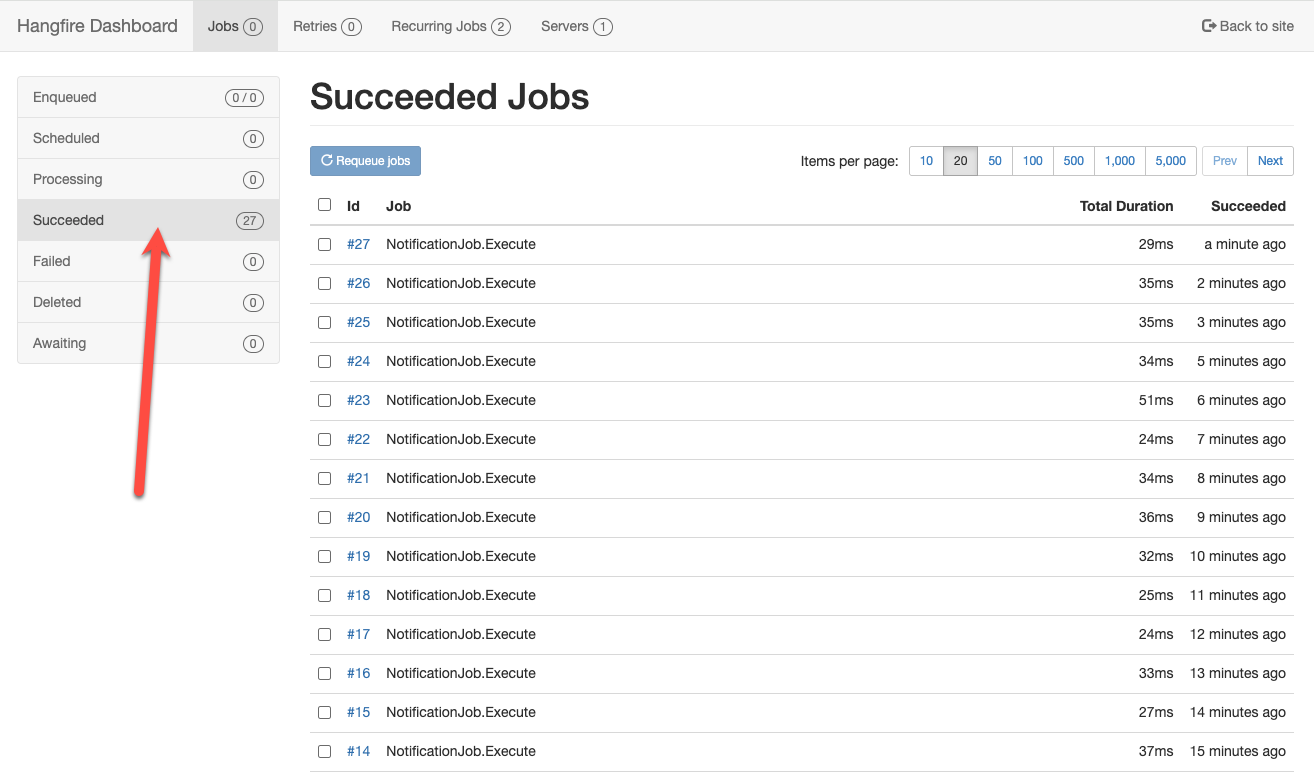
You can also view the successful jobs:
You can also view a lot of other details:
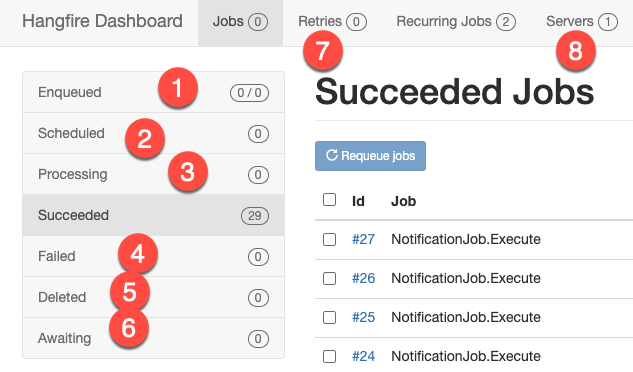
- Queued jobs
- Scheduled jobs
- Jobs being processed
- Failed jobs
- Deleted jobs
- Awaiting jobs
- Retries
- Servers
Background Jobs
Hangfire also supports background jobs, which are jobs that are queued to run in a different thread, which is to say, not the main thread.
The code is as follows:
using Hangfire;
using Hangfire.AspNetCore;
using Hangfire.PostgreSql;
using Logic;
using Microsoft.Extensions.DependencyInjection;
using Serilog;

// Configure logging
Log.Logger = new LoggerConfiguration()
    .WriteTo.Console()
    .CreateLogger();

var services = new ServiceCollection();
services.AddLogging(builder => builder.AddSerilog());
// Register the job for DI
services.AddTransient<NotificationJob>();

var serviceProvider = services.BuildServiceProvider();

// Configure hangfire
GlobalConfiguration.Configuration
    .UseSimpleAssemblyNameTypeSerializer()
    .UseRecommendedSerializerSettings()
    .UsePostgreSqlStorage(x =>
    {
        x.UseNpgsqlConnection("host=localhost;Database=hangfire;username=myuser;password=mypassword");
    })
    // Configure how to resolve DI object activation
    .UseActivator(new AspNetCoreJobActivator(serviceProvider.GetRequiredService<IServiceScopeFactory>()));

// Start the server
using (var server = new BackgroundJobServer())
{
    BackgroundJob.Enqueue<NotificationJob>(x => x.ExecuteLengthy());

    // Artificial wait
    await Task.Delay(TimeSpan.FromMinutes(5));

    // Shutdown server
    Log.Information("Shutting down BackgroundJobServer...");
    await server.WaitForShutdownAsync(CancellationToken.None);
}
The example here is for a console application, where we register and manually construct our own DI container.
The process is much simpler with worker services and ASP.NET applications that natively support this.
The magic is happening here:
BackgroundJob.Enqueue<NotificationJob>(x => x.ExecuteLengthy());
This is where we register our background job via the BackgroundJob class.
If we run this code, we should see the following:
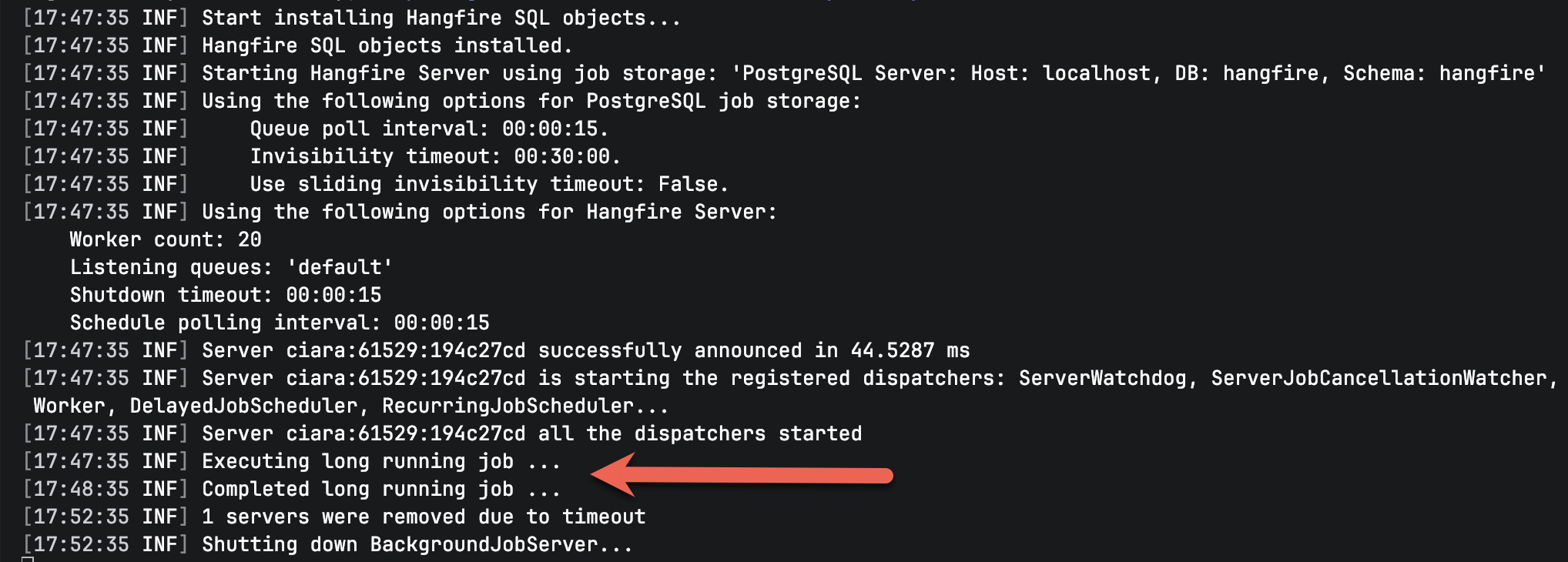
We can see here that the long-running task took 1 minute to run.
TLDR
In this post, we have looked at how to use the Hangfire library for recurrent and timed schedules, as well as how to use it in an ASP.NET project, a worker service, and also how to implement background jobs
The code is in my GitHub.
Happy hacking!