.NET 11 Preview - ZipArchiveEntry CompressionMethod Property
[C#, .NET, .NET 11 Preview]
In a previous post in the series on file compression, “Listing The Files In A Zip File In C# & .NET”, we discussed how to list files in a Zip file.
When adding a file to a Zip file, you generally want to compress it. But it is not mandatory.
So if you want to check if a file was compressed, you would typically do it like this:
using System.IO.Compression;
using System.Reflection;
using Serilog;

Log.Logger = new LoggerConfiguration()
    .WriteTo.Console().CreateLogger();

// Extract the current folder where the executable is running
var currentFolder = Path.GetDirectoryName(Assembly.GetExecutingAssembly().Location)!;

// Construct the full path to the zip file
var zipFile = Path.Combine(currentFolder, "Books.zip");

// Open the zip file on disk for update
await using (var archive = await ZipFile.OpenAsync(zipFile, ZipArchiveMode.Read))
{
    // Loop through all the entries
    for (var i = 0; i < archive.Entries.Count; i++)
    {
        // Get the file name
        var file = archive.Entries[i];
        // Check if the file is compressed
        if (file.CompressedLength != file.Length)
            Log.Information("File {FileName} is compressed", file.Name);
        // Print the count and name
        Log.Information("File {Count} - {FileName}", i + 1, file.FullName);
    }
}
The magic is happening in this part:
// Check if the file is compressed
if (file.CompressedLength != file.Length)
  Log.Information("File {FileName} is compressed", file.Name);
We are comparing the compressed length with the actual (uncompressed) length.
The trouble with this is that, as much as it can tell you whether or not there was compression, it does not tell you what method was used.
This problem is solved in .NET 11, which has added a property, CompressionMethod, to the ZipArchiveEntry class, to address this problem.
We can rewrite our code as follows:
// Check if the file is compressed
switch (file.CompressionMethod)
{
    case ZipCompressionMethod.Stored:
        Log.Information("File {FileName} is not compressed", file.Name);
        break;
    case ZipCompressionMethod.Deflate:
        Log.Information("File {FileName} is compressed using Deflate", file.Name);
        break;
    case ZipCompressionMethod.Deflate64:
        Log.Information("File {FileName} is compressed using Deflate64", file.Name);
        break;
    default:
        Log.Warning("Unknown compression");
        break;
}
Here we can see the various options we have for compression:
- Stored
- Deflate
- Deflate64
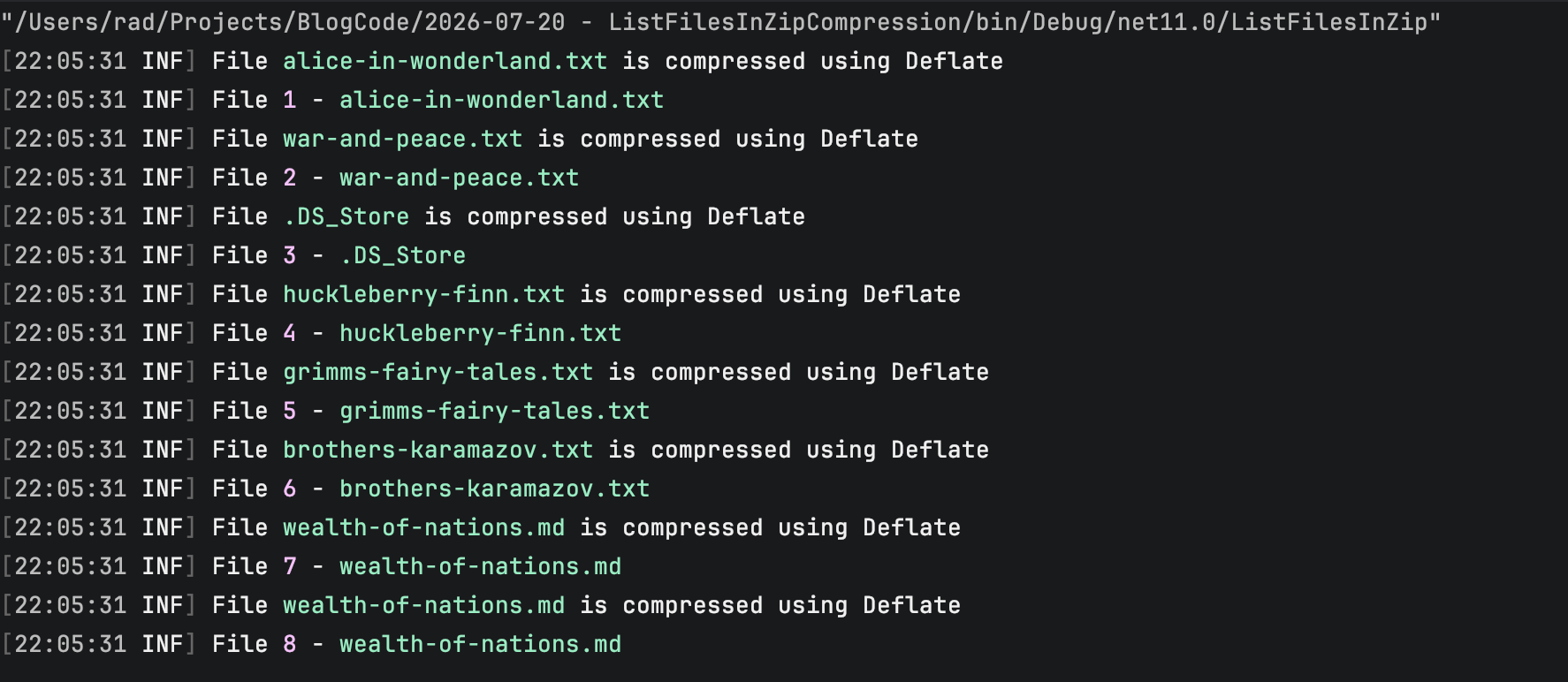
If we run this code, it should print the following:
TLDR
You can use the new CompressionMethod property of the ZipArchiveEntry class to tell how (if at all) the file was compressed.
The code is in my GitHub.
Happy hacking!