Product Review - Stellar Repair for MS SQL - Part 3: Backup Data Recovery
[Product Review, SQL Server, Stellar Repair]
This is Part 3 of an independent review of a product, Stellar Repair for MS SQL, from the folks at Stellar Info.
The version being reviewed is 11.0.0.1
- Part 1 - Introduction
- Part 2 - SQL Server Password Recovery
- Part 3 - Backup Data Recovery (this post)
- Part 4 - Database Recovery
- Part 5 - File corruption
- Part 6 - Conclusion
In our previous post, “Product Review - Stellar Repair for MS SQL - Part 2: SQL Server Password Recovery”, we looked at the functionality of retrieving a SQL Server password.
In this post, we will look at how to recover data from a SQL backup (.bak), which may or may not be corrupted.
In preparation for this, we will:
- Prepare a database
- Seed it with test data
- Back up the database
- Restore selected data from the backup
For this exercise, we will use SSMS.
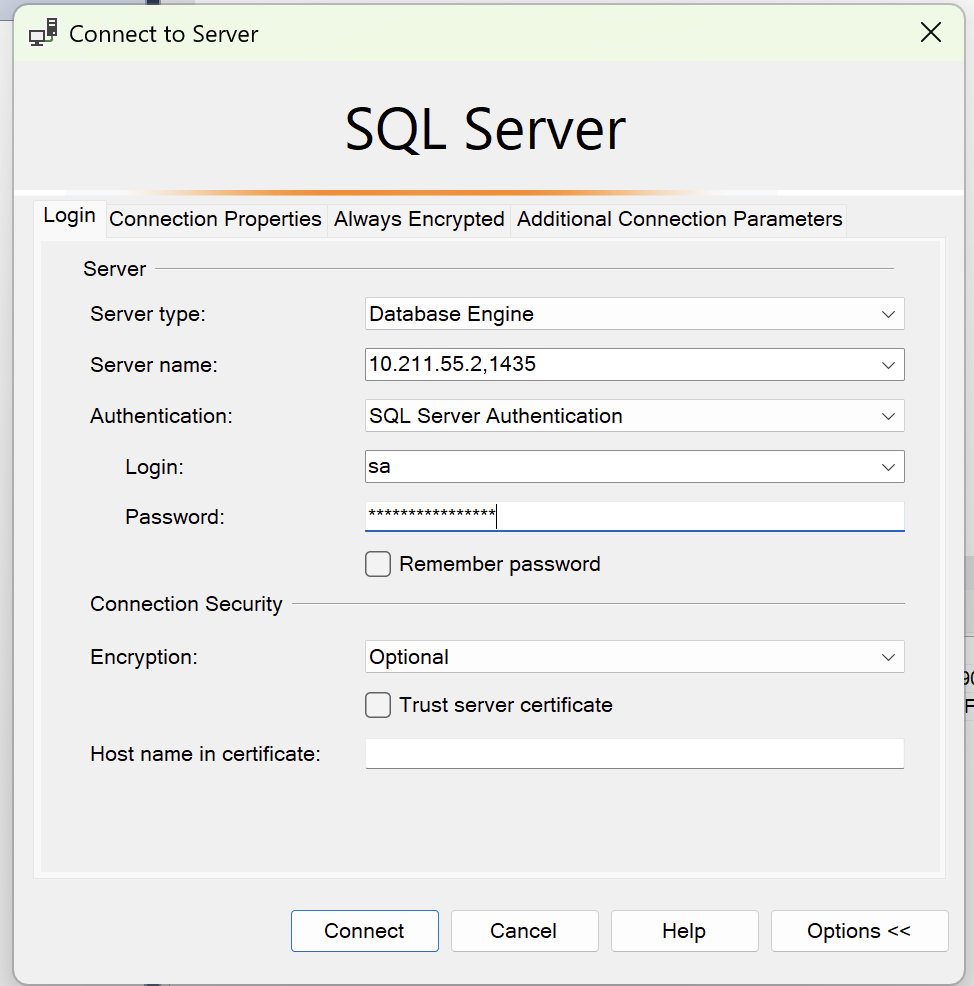
First, connect to the server:
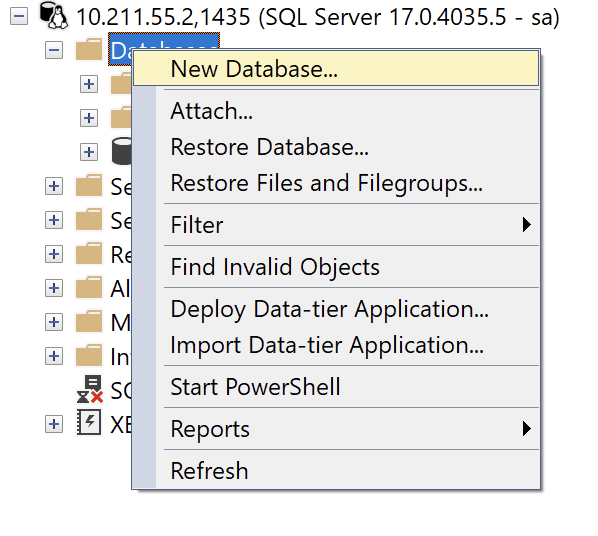
Next, we create a database:
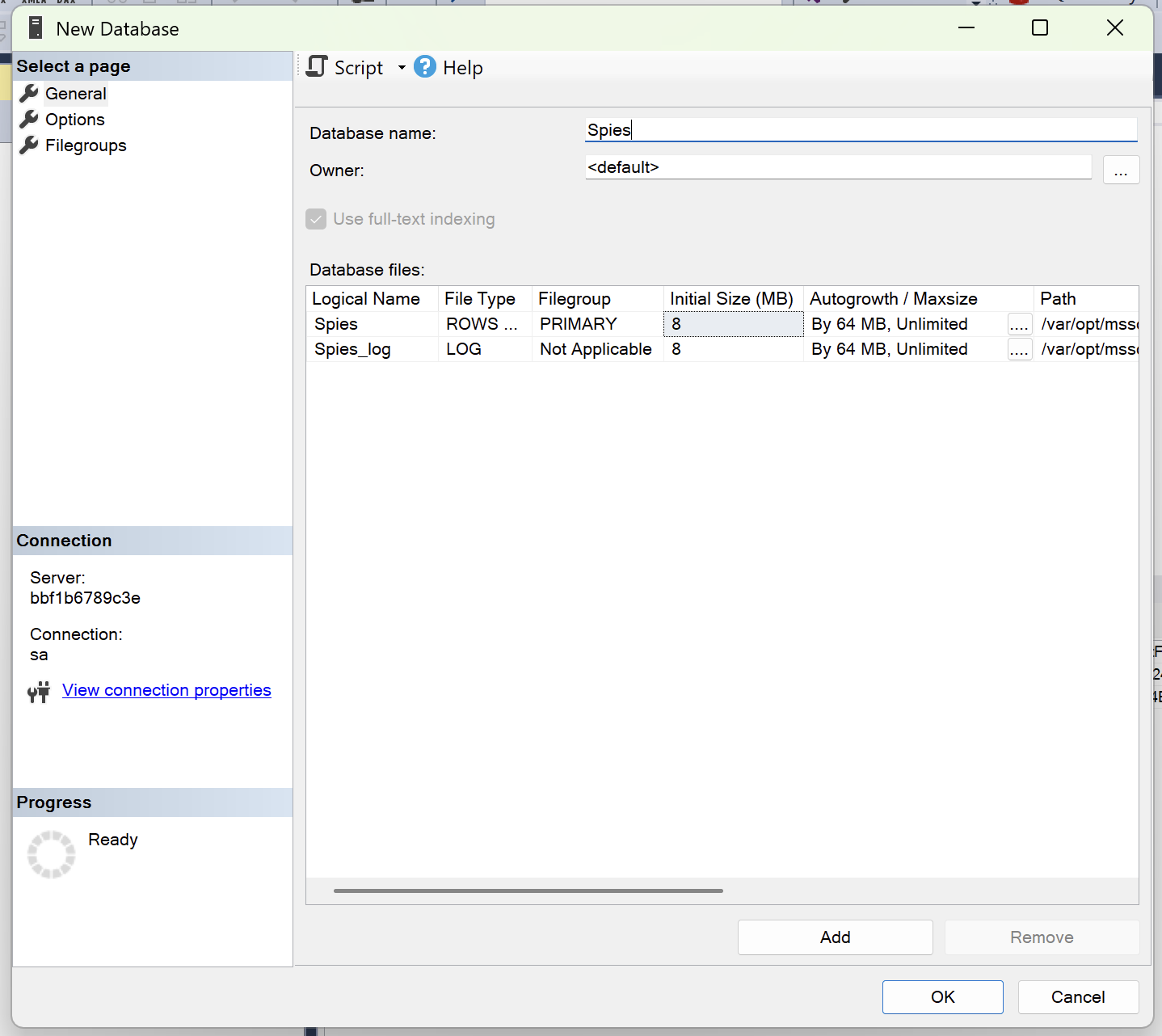
Then we create our database. The name is Spies.
Next, we create a table to store our Spies.
CREATE TABLE Agencies
    (
        AgencyID UNIQUEIDENTIFIER PRIMARY KEY
            DEFAULT NEWSEQUENTIALID(),
        Name     NVARCHAR(250)    NOT NULL
            UNIQUE
    );

CREATE TABLE Spies
    (
        SpyID       uniqueidentifier PRIMARY KEY
            DEFAULT (NEWSEQUENTIALID()),
        AgencyID    uniqueidentifier NOT NULL
            REFERENCES Agencies (AgencyID),
        FullName    nvarchar(250)    NOT NULL,
        DateOfBirth Date             NOT NULL,
        UNIQUE (AgencyID, FullName)
    );
Finally, we seed the data.
First, we start with the Agencies.
INSERT INTO dbo.Agencies
    (
        AgencyID,
        Name
    )
VALUES
    (
        '{dc34433e-f36b-1410-8ddd-000326cb3e3a}', N'Central Intelligence Agency (United States)'
    ),
    (
        '{dd34433e-f36b-1410-8ddd-000326cb3e3a}', N'Intelligence Directorate (Cuba)'
    ),
    (
        '{db34433e-f36b-1410-8ddd-000326cb3e3a}', N'MI-6 (United Kingdon)'
    ),
    (
        '{da34433e-f36b-1410-8ddd-000326cb3e3a}', N'National Intelligence Service (Kenya)'
    );
Next, the Spies.
The script looks like this:
INSERT Spies (AgencyID,Fullname,DateOfBirth)
SELECT 'db34433e-f36b-1410-8ddd-000326cb3e3a','Reanna Runte','1998-05-28'UNION
SELECT 'dc34433e-f36b-1410-8ddd-000326cb3e3a','Keegan Ullrich','2004-03-15'UNION
SELECT 'da34433e-f36b-1410-8ddd-000326cb3e3a','Doris Greenholt','2002-12-12'UNION
SELECT 'db34433e-f36b-1410-8ddd-000326cb3e3a','Janelle Wunsch','2024-10-17'UNION
SELECT 'da34433e-f36b-1410-8ddd-000326cb3e3a','Zelda Pagac','2010-08-01'UNION
--- Snipped here ---
Once run, the table will have 6,000 rows.
Next, we back up the database.
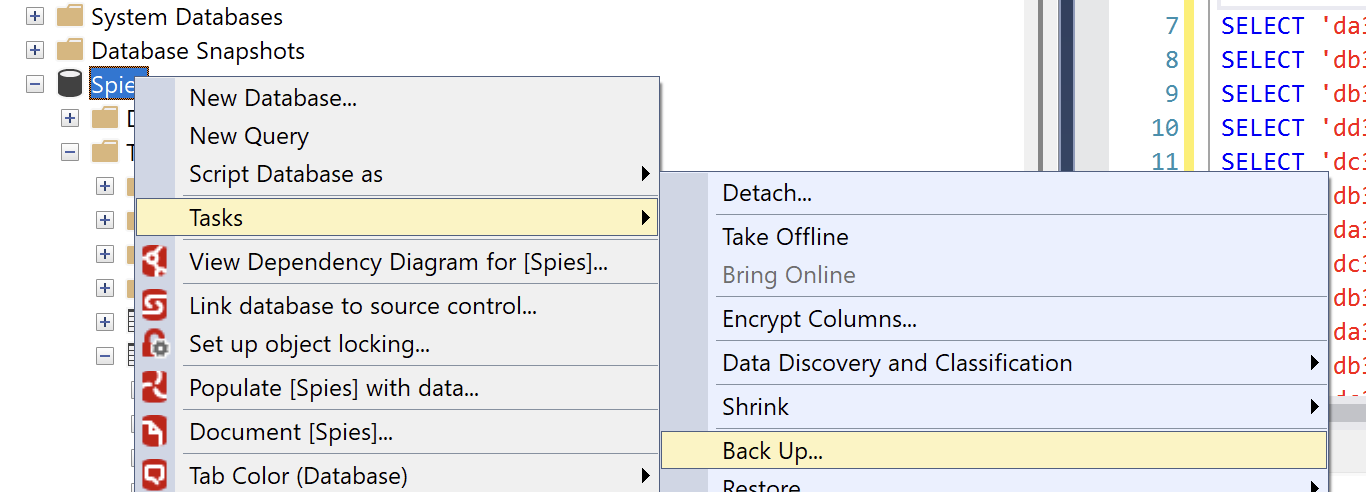
The default options will suffice:
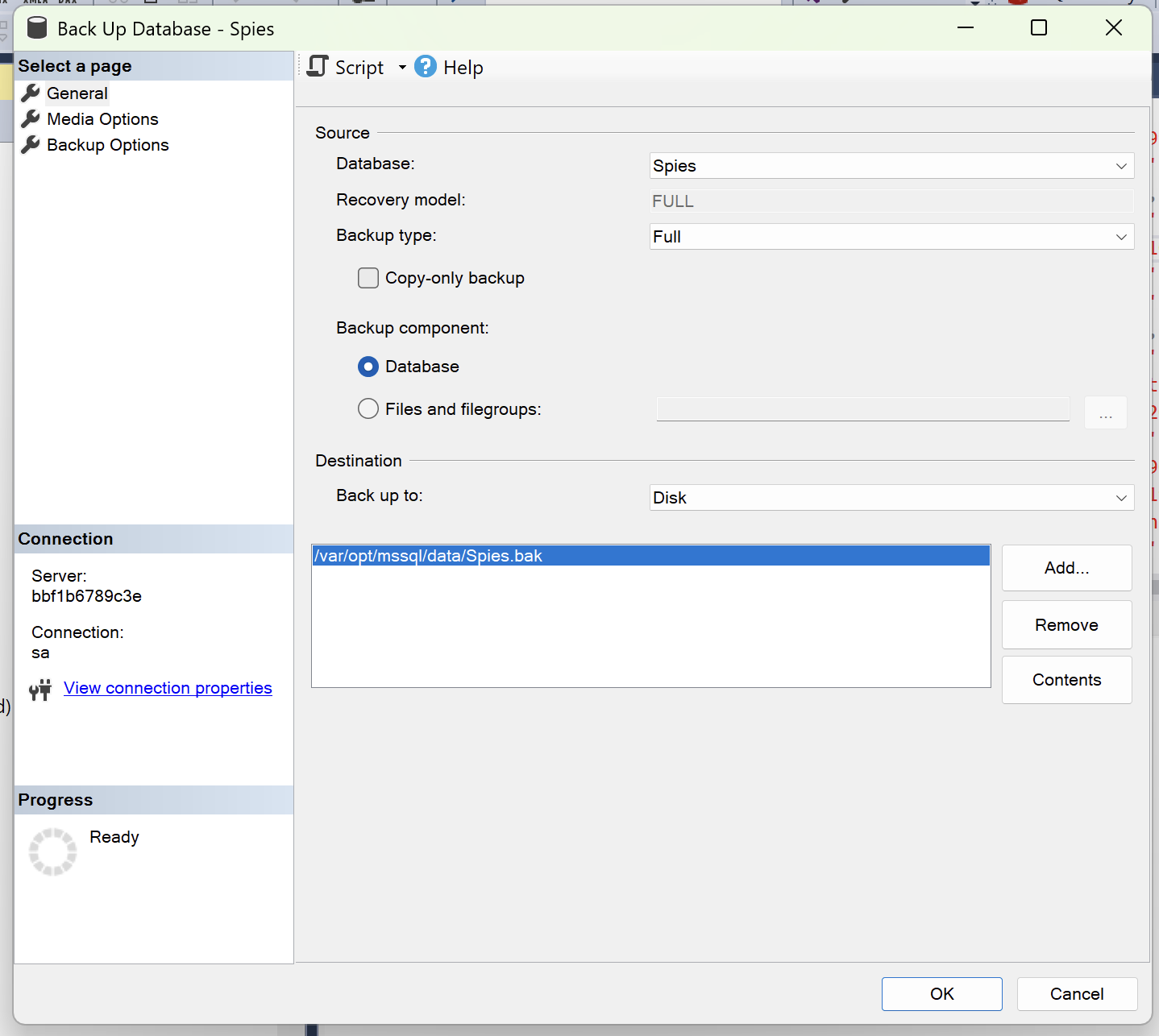
Once done, the backup file should be visible.

Next, we load the software to retrieve data from a backup.
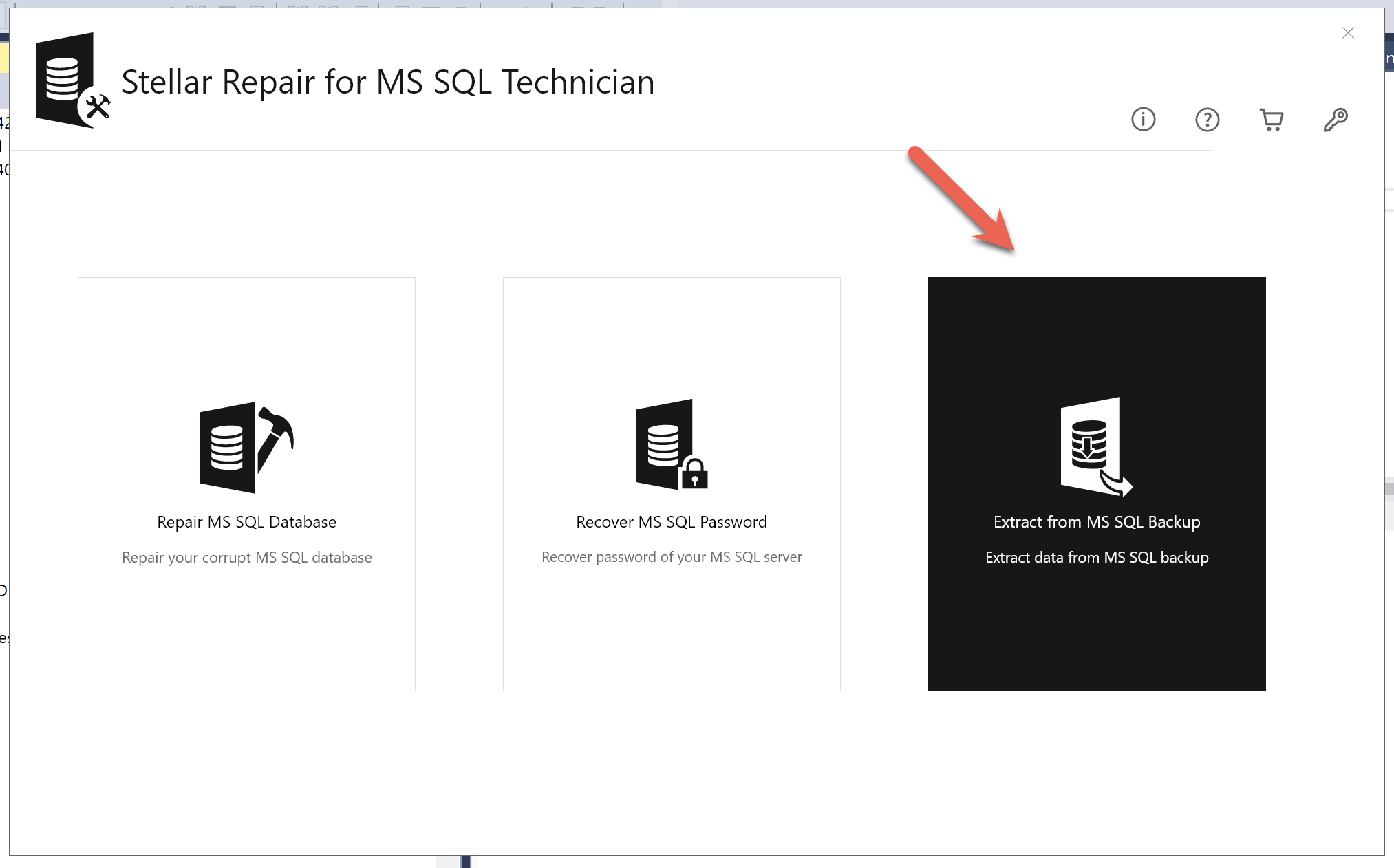
This opens the following screen:
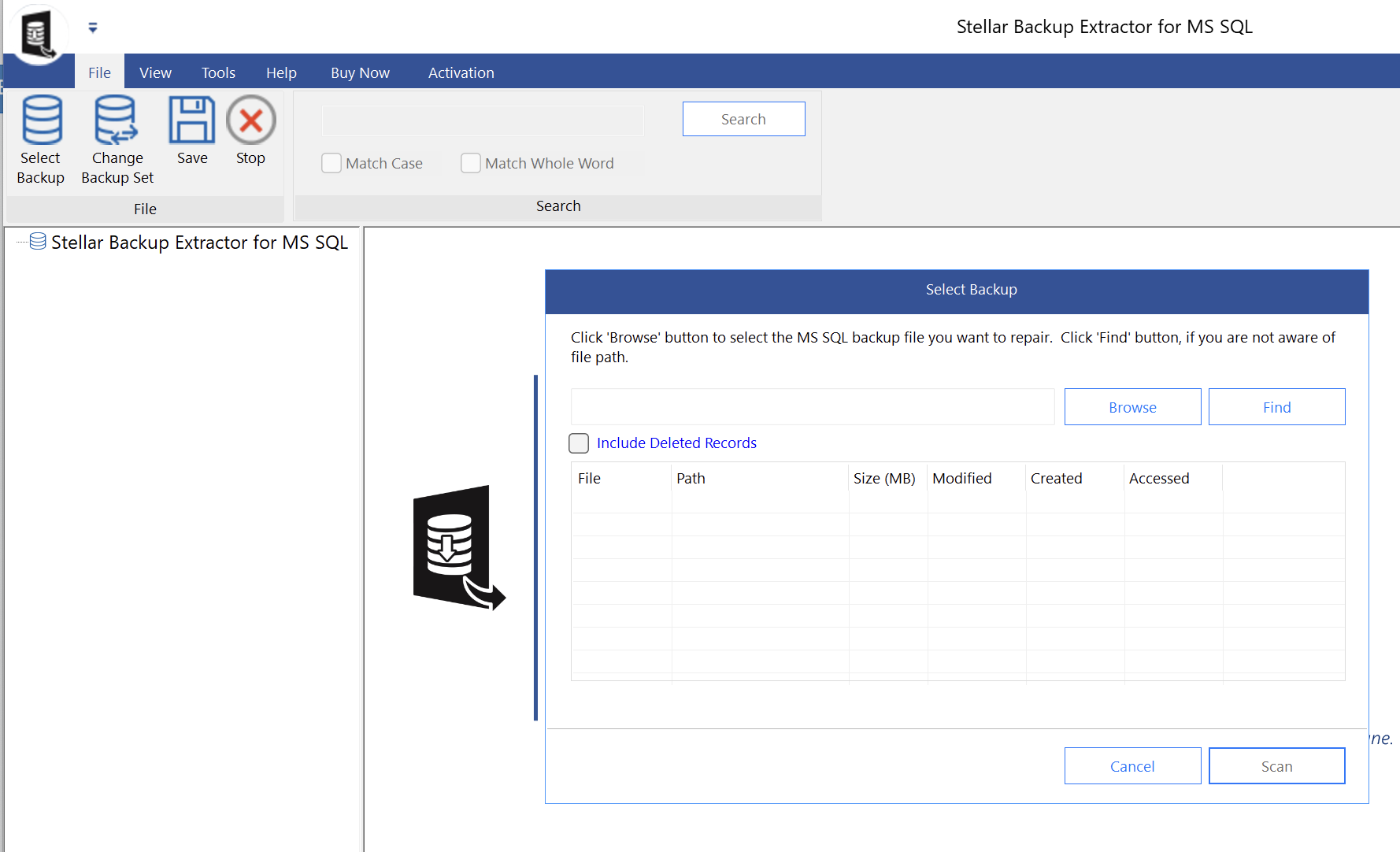
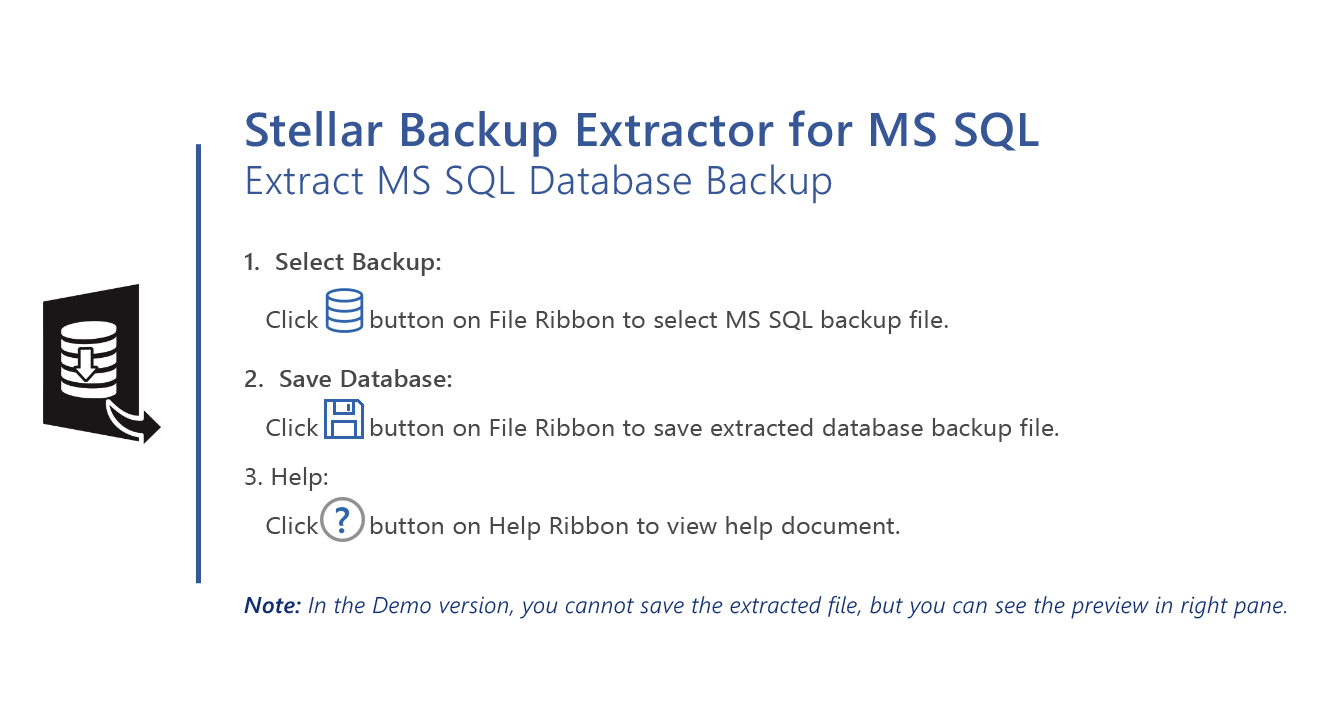
The home screen looks like this:
Let us now browse to our backup.
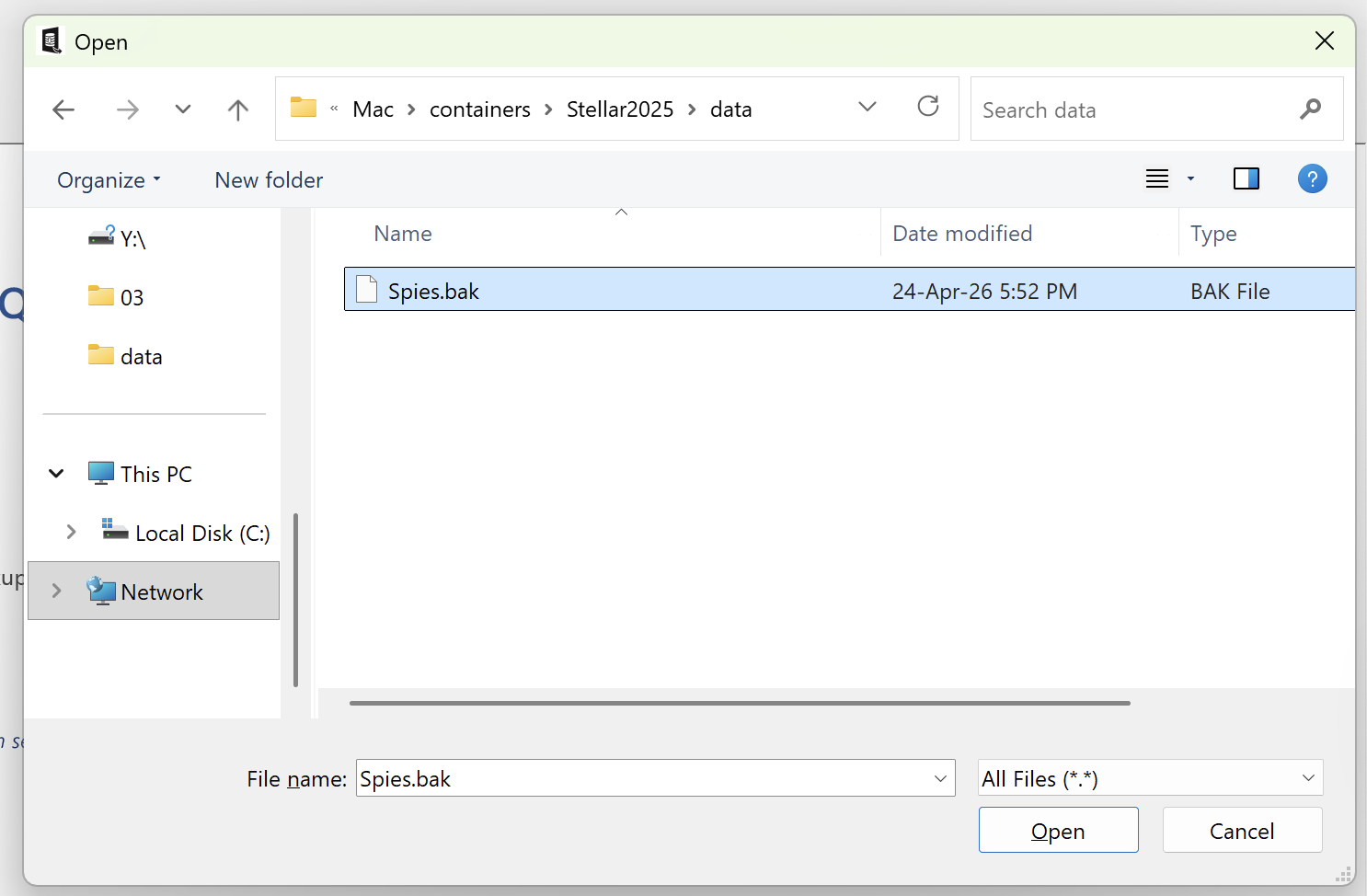
When we select and open the file, we get the following screen:
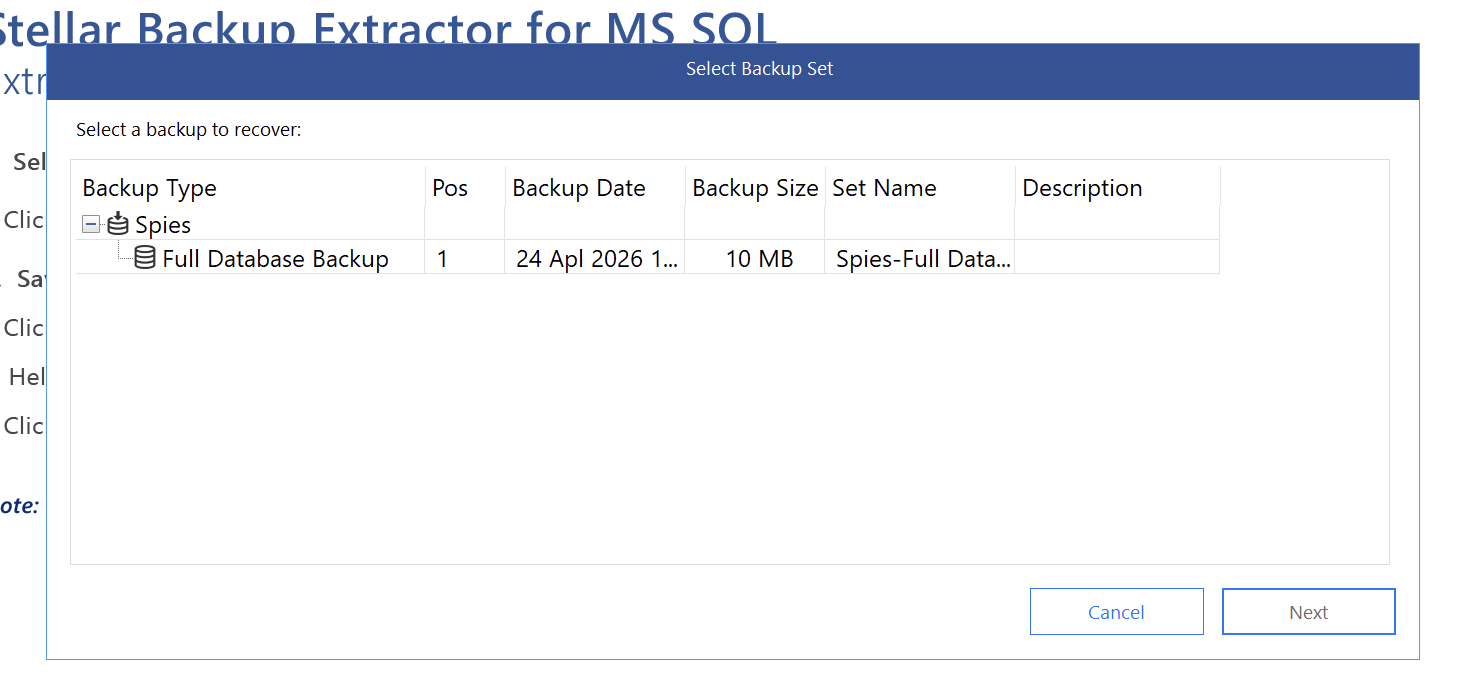
Here we can see our backup file with some basic metadata.
If we click Next, we proceed to the following screen:
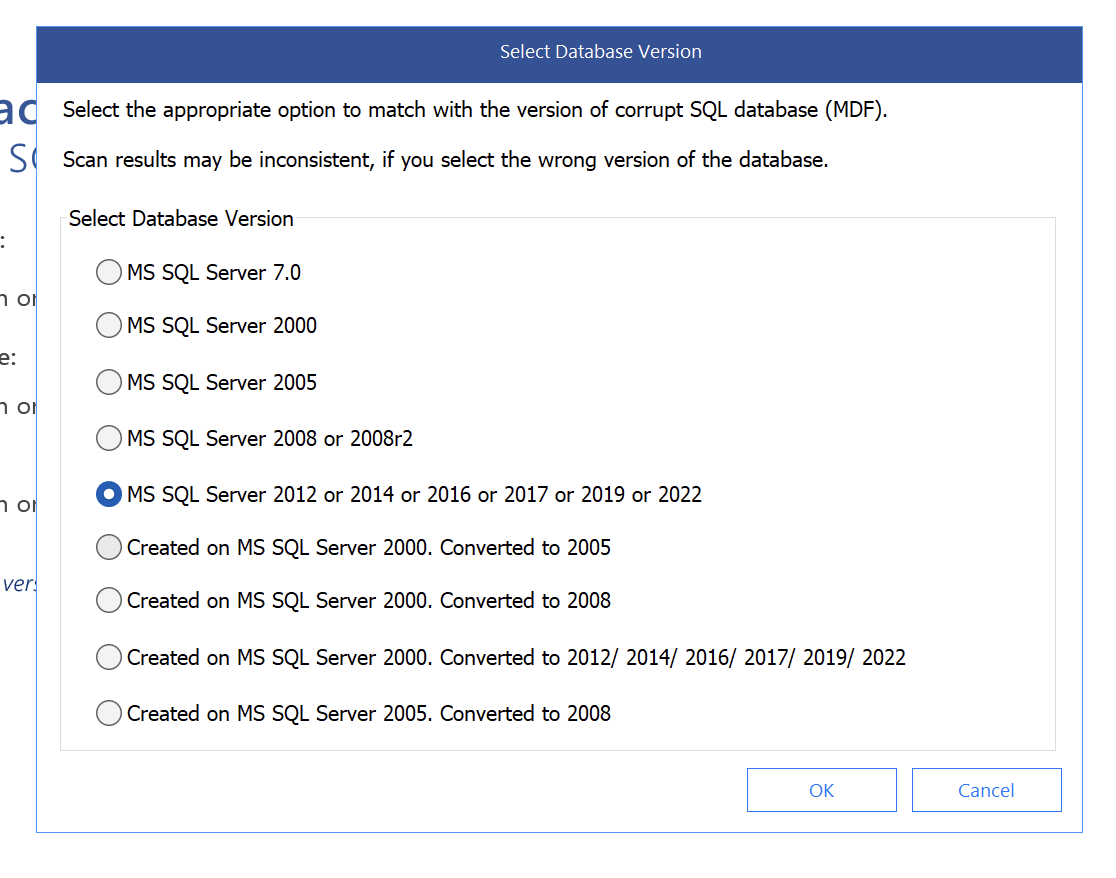
Here, it seems you should know a bit about the backup, specifically:
- The version it was created in
- Whether it was created originally in version
2000or2005and subsequently converted to a later version.
Once you select the appropriate version and click OK, you should get the following screen:
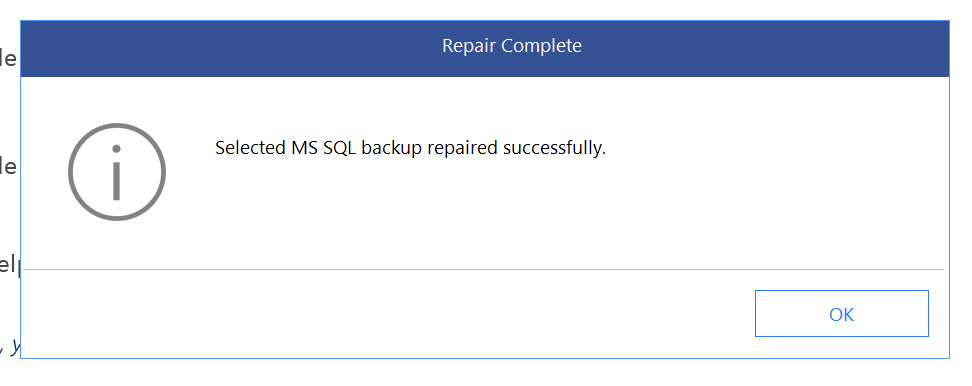
From there, you can now browse the database.
You can click on the table, and the software will fetch the data from the backup. At the bottom of the screen, you will see a progress bar.
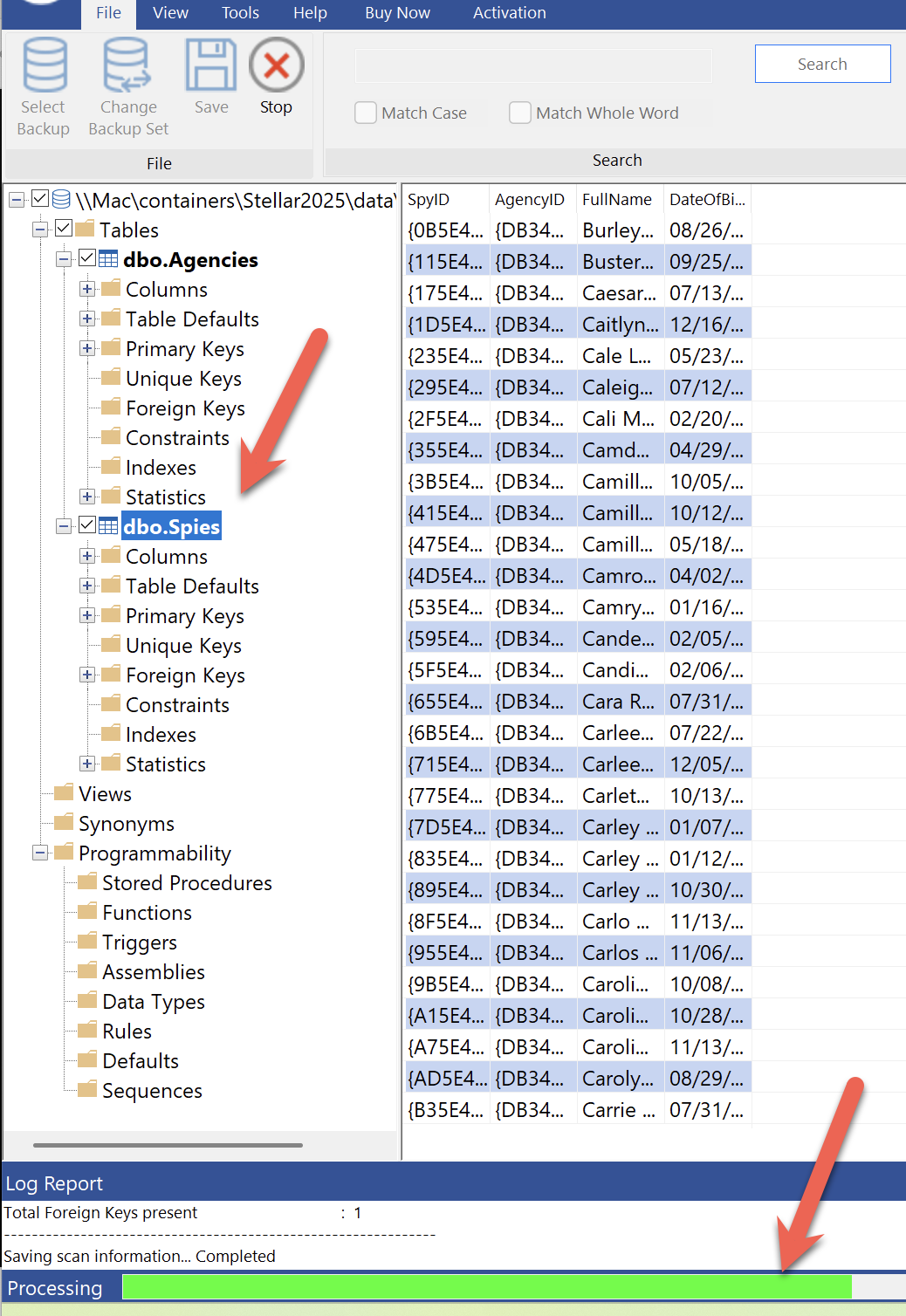
You can also browse the other table objects, such as columns, defaults, primary keys, foreign keys, constraints, indexes, and statistics.
Similarly, you can also browse other database objects like views, procedures, functions, triggers, assemblies, data types, rules, defaults, and sequences.
At this point, you have the option to save the recovered backup.
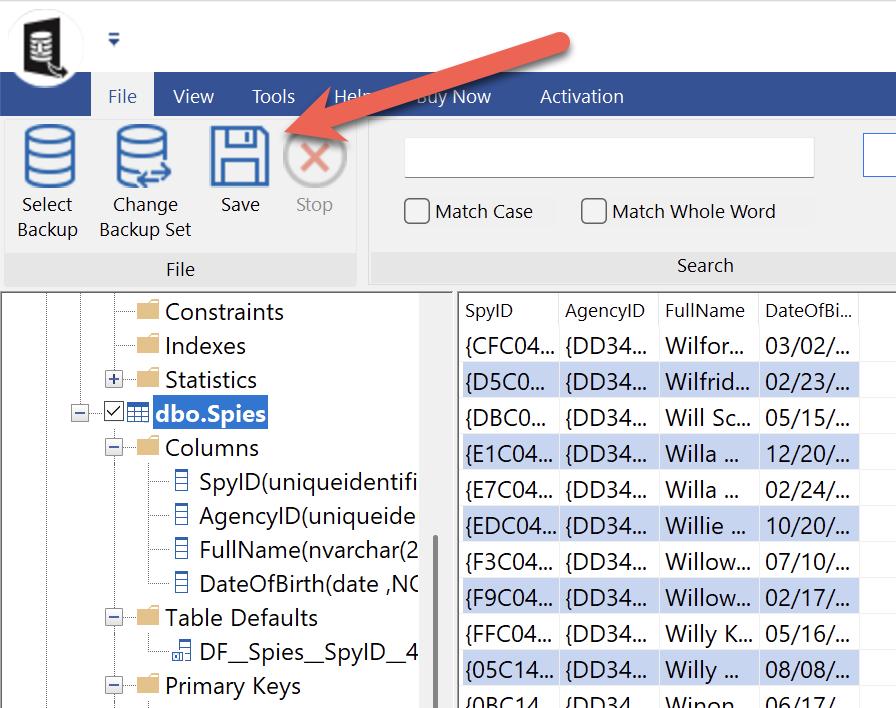
Upon saving, you are presented with the following options:
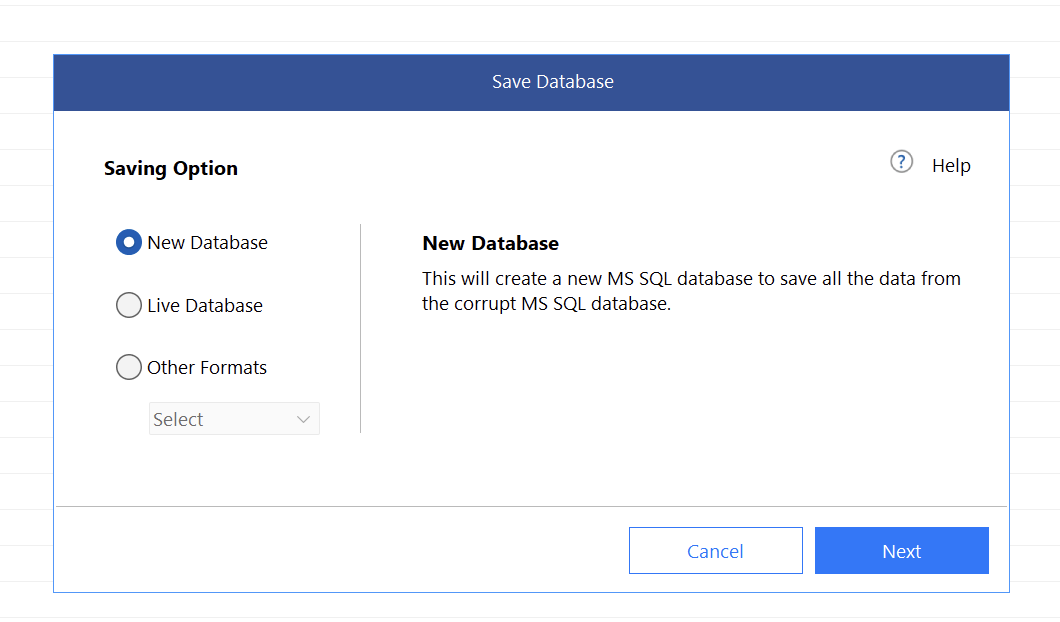
Here you can:
- Restore to a completely new database
- Restore to an existing database
- Restore to a different format:
- HTML
- CSV
- Excel
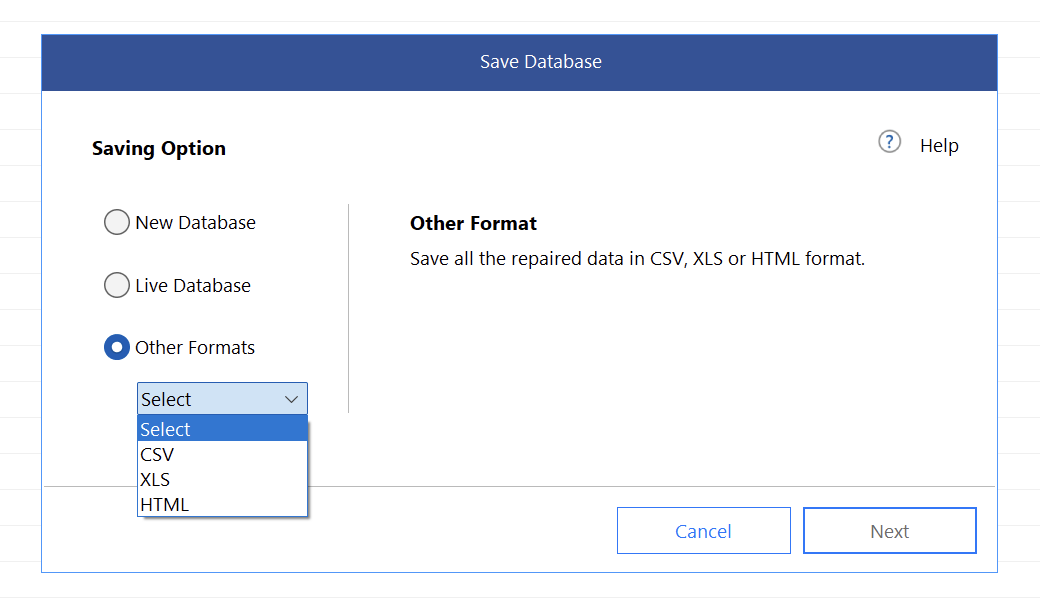 .
.
Let us try and export the Spies table to XLS.
I am curious why XLS is the supported format at not XLSX, given the XLS format has a maximum row count of 65,536 rows, whereas XLSX has 1,048,576 rows.
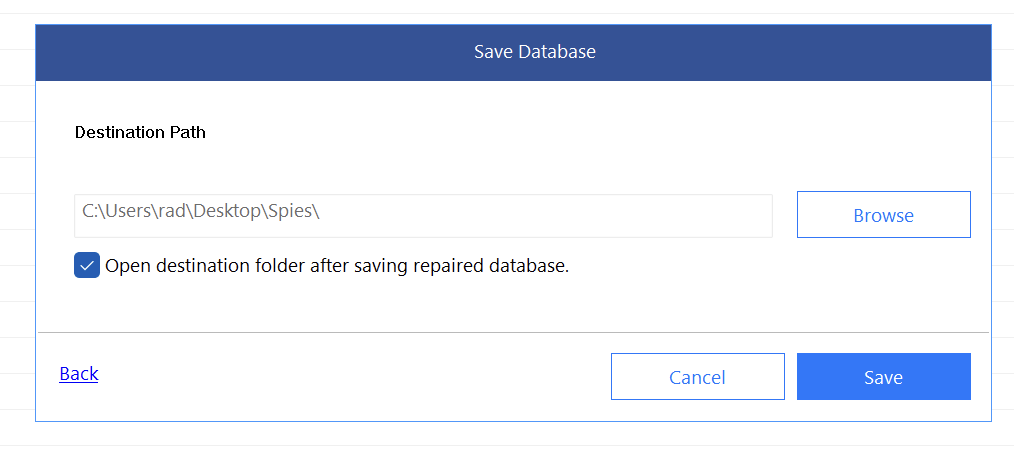
Once we click Save, a number of files (corresponding to each selected table) are generated in the specified folder.
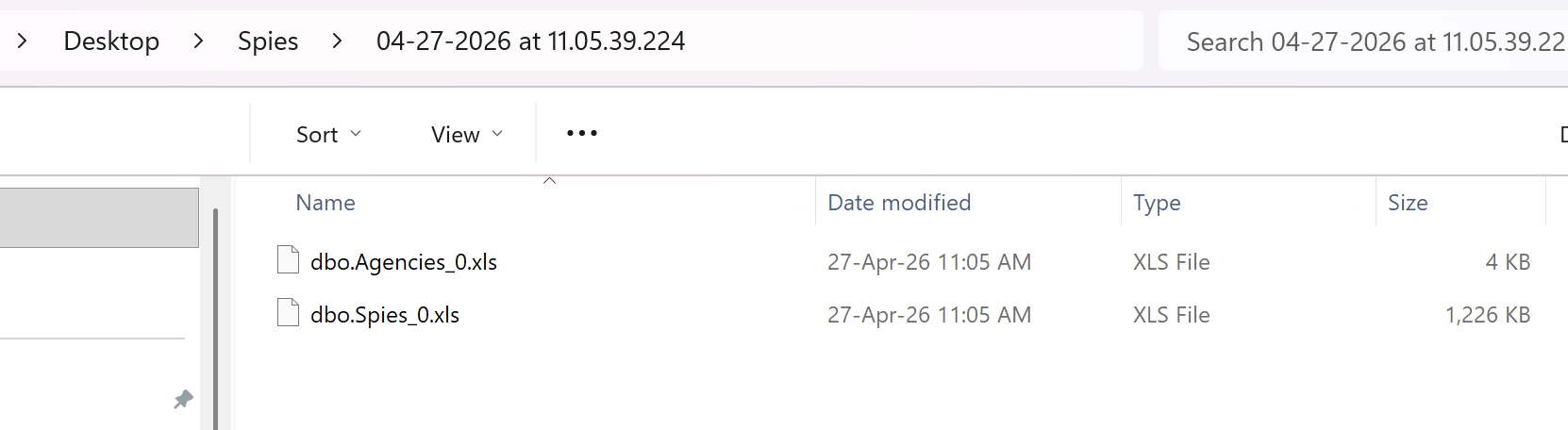
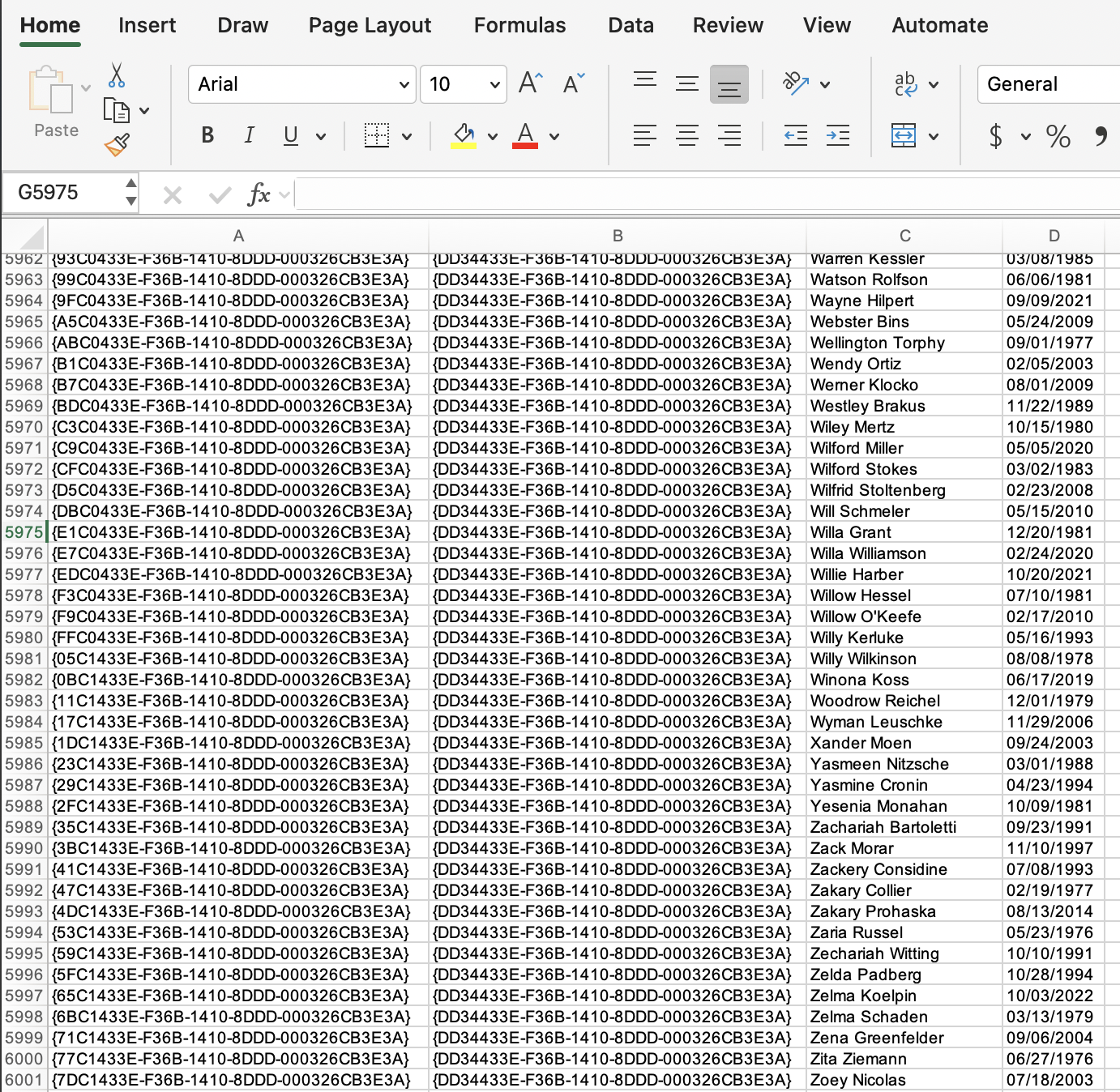
We can now view the data.
A couple of suggestions:
- Support export to the latest Excel format, XLSX
- Provide clarity as to what happens if the number of rows exceeds the selected format (XLS or XLSX) capacity.
In a subsequent post, I will attempt to corrupt a backup and see what happens when attempting to access and retrieve data.
In the next post, we will look at how to recover data from a SQL Server (.mdf) file.
TLDR
Stellar Repair allows you to extract data and objects from a backup (.bak) file.
The code is in my GitHub.
Happy hacking!